
Create a deep link into the Mobile Locker app
A deep link opens the Mobile Locker app to a file, a folder, Content Home, or email compose. The same URL works on iPhone, iPad, Windows, and Android.
You can copy a ready-made App URL from a presentation or a folder. You can also build the same URL for a CRM or call app (for example CATS, Veeva CRM, or Salesforce).
Use the app URL, not the browser URL. The admin site shows both. The browser URL opens Content Library in a web browser. The App URL starts with mobilelocker:// and opens the installed app.
Windows PCs with the previous app. The previous Windows app (version 2.x) can steal mobilelocker:// links. Remove it before you rely on deep links. See Remove the previous Windows app.
On this page
Copy a presentation App URL
- Open the presentation in the admin site.
- Find Open & email URLs.
- Copy App URL.
- Paste it into email, Slack, Teams, a CRM button, or any app that can launch a custom URL.
Those three fields are not the same:
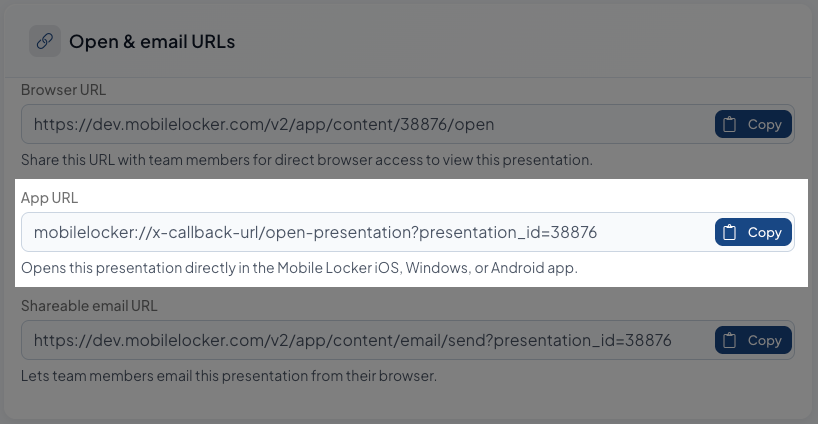
| Field | Example | Opens |
|---|---|---|
| Browser URL | https://app.mobilelocker.com/v2/app/content/2313/open |
The file in Content Library in a browser |
| App URL | mobilelocker://x-callback-url/open-presentation?presentation_id=2313 |
The file in the Mobile Locker app |
| Shareable email URL | https://app.mobilelocker.com/v2/app/content/email/send?presentation_id=2313 |
Email compose in a browser (only if the presentation can be shared) |
This article is about the App URL.
Copy a folder App URL
- Open the folder in the admin site.
- Find Share Links.
- Copy Native App Folder URL.
- Paste it the same way you paste a presentation App URL.
Those two fields are not the same:
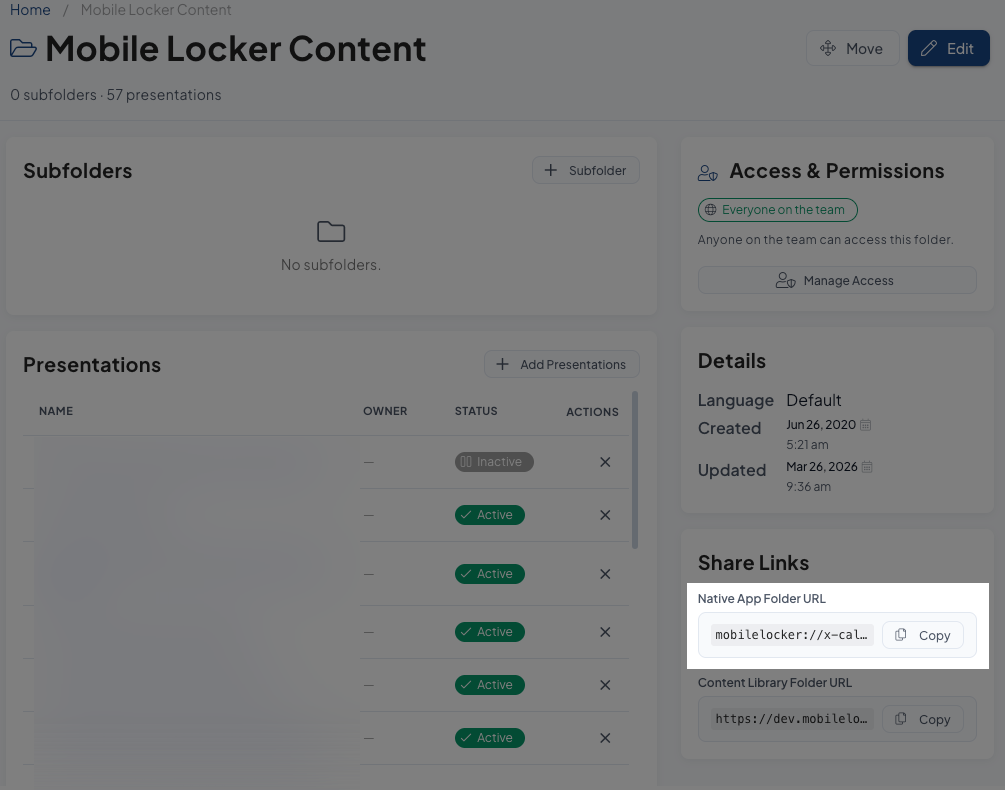
| Field | Example | Opens |
|---|---|---|
| Native App Folder URL | mobilelocker://x-callback-url/open-folder?folder_id=5122 |
That folder in the Mobile Locker app |
| Content Library Folder URL | https://app.mobilelocker.com/v2/app/content?folder_id=5122 |
That folder in the browser Content Library |
URL shape
Every app deep link looks like this:
mobilelocker://x-callback-url/{action}?key=value| Action | Required | Result |
|---|---|---|
open-presentation |
presentation_id |
Opens that file. The app downloads it first if needed. |
open-folder |
folder_id |
Opens that folder in Content. |
open-main |
None | Opens Content Home. Does not open a file. |
compose-email |
None | Opens native email compose. Optional IDs can prefill the message. |
Replace the example IDs below with IDs from your team. You can copy those IDs from the App URL on the presentation or folder page.
Open a presentation
mobilelocker://x-callback-url/open-presentation?presentation_id=2313The person who taps the link must have access to that file. If they do not, the app tells them they do not have access.
Open a folder
mobilelocker://x-callback-url/open-folder?folder_id=5122The app opens that folder in Content. It does not open a file. If the person does not have that folder, the app tells them they do not have access.
Open Content Home
mobilelocker://x-callback-url/open-mainUse this when you want to bring the person into Mobile Locker without opening a specific file. You can still add CRM or CATS parameters (see below).
Open email compose
mobilelocker://x-callback-url/compose-email?presentation_id=2313&list_id=7All of these parameters are optional. A link with no parameters opens a blank compose screen:
contact_idlist_id(if both a contact and a list are present, the list is used)presentation_idtemplate_id
The person must have permission to send email. A compose link cannot bypass that setting.
US and EU are separate. Contact, list, presentation, and template IDs are not interchangeable between app.mobilelocker.com and eu.mobilelocker.com. Use IDs from the region the person signs in to.
The presentation Shareable email URL is browser compose. It is not this app deep link.
CRM and CATS parameters
You can add extra query parameters to any of the URLs above. The app keeps those values with the visit so your CRM or call system can match the activity.
Synergistix CATS
Use this pattern when a call screen should open Mobile Locker and attach the call:
mobilelocker://x-callback-url/open-presentation?x-source=CATS&presentation_id=2313&cats_call_id=222&cats_entity_id=333Open Content Home and still attach the call:
mobilelocker://x-callback-url/open-main?x-source=CATS&cats_call_id=222&cats_entity_id=333Include both cats_call_id and cats_entity_id. Other cats_* keys can ride on the same URL.
Veeva CRM or Salesforce
To select a CRM customer before the file or folder opens, include both:
crm_related_object(for exampleAccountorContact)crm_related_id
You can also add crm_related_object_name as a display name if the record is not on the device yet. One of those keys alone is ignored.
mobilelocker://x-callback-url/open-presentation?presentation_id=2313&crm_related_object=Contact&crm_related_id=003XXXXXXXXXXXXXXX&crm_related_object_name=Jane%20DoeThe same pair works on open-folder and open-main.
Devices and apps
Use the same mobilelocker:// URL from:
- iPhone or iPad (Mobile Locker iOS app)
- Windows PC (current Windows app, version 5)
- Android phone or tablet (Mobile Locker Android app)
- A CRM or call app that can launch a custom URL (CATS, Veeva, Salesforce)
- A message the person taps in email, Slack, or Teams, if that client launches custom URLs
Some mail and chat apps do not open custom URLs. If a tap does nothing, copy the URL and open it from Safari, Chrome, or the Windows Run dialog (Win+R).
The Mobile Locker app must be installed. The person must sign in. If they tap the link before they sign in, the app waits and then opens the file, folder, home, or compose screen after sign-in.
What happens when someone taps
| Situation | What they see |
|---|---|
| App is not installed | The device may show an error, or nothing happens. They need the Mobile Locker app. |
| App is installed, they are not signed in | They sign in, then the link runs. |
| File is not downloaded yet | The app downloads it, then opens it. |
| They do not have access | The app says they do not have access to that file or folder. |
open-folder |
Content opens on that folder. |
open-main |
Content Home opens. No viewer. |