
Troubleshooting Upload Issues
Overview
Sometimes when you try to upload a PowerPoint presentation to Mobile Locker, you may encounter an error or the upload may fail. This often happens when a file has been modified by security software, email filters, or virus scanners that alter the file structure in a way that makes it incompatible with our system.
This guide will show you how to fix this issue by opening and resaving your file.
Why This Happens
When PowerPoint files pass through certain security systems (such as corporate email filters, antivirus software, or file scanning tools), these systems may modify the file structure to check for threats. While this keeps your organization safe, it can sometimes change the file in a way that makes it invalid or incompatible with upload systems.
Common causes include:
- Corporate email security filters
- Antivirus software scanning
- Network file transfer modifications
- Cloud storage sync issues
The good news is that this is easy to fix by simply opening and resaving the file.
How to Fix the Issue
Follow these steps to resave your PowerPoint file in a compatible format:
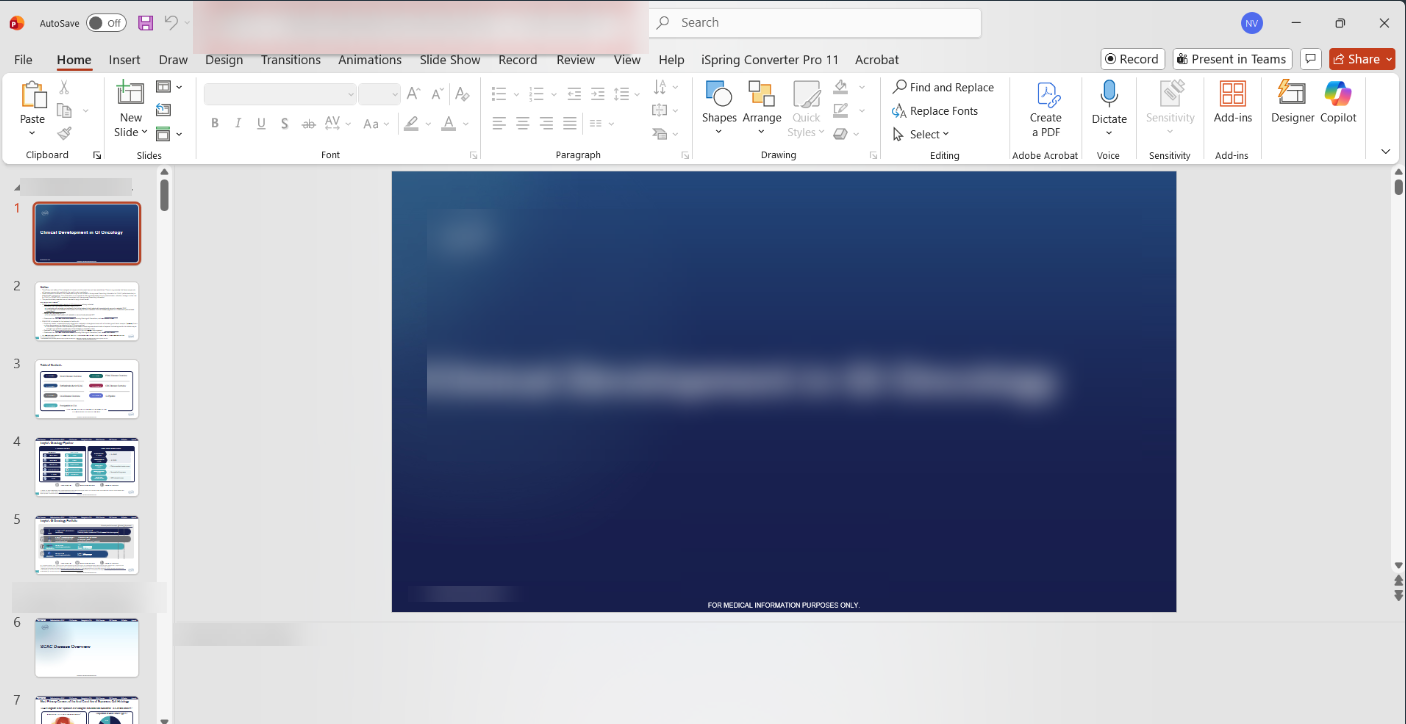
Step 1: Open the PowerPoint File
- Locate the PowerPoint file on your computer
- Double-click to open it in Microsoft PowerPoint
- Wait for the file to fully load
Step 2: Save As a New Version
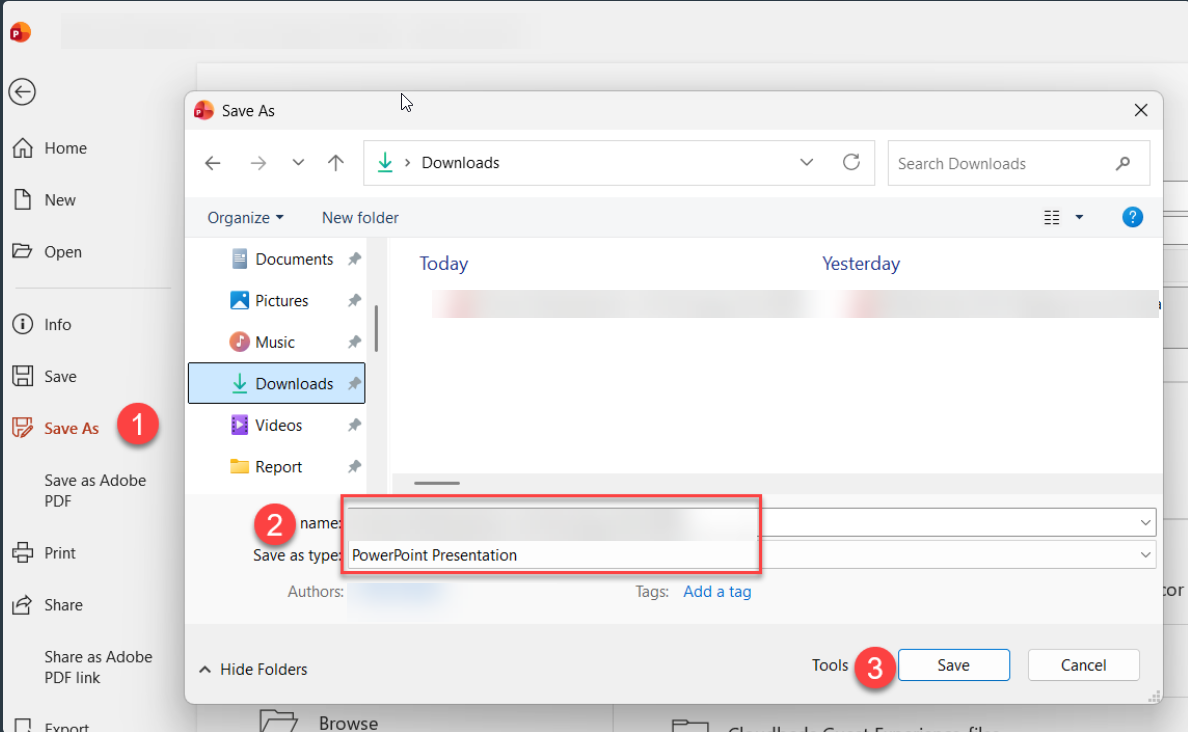
For Windows:
- Click File in the top menu
- Select Save As
- Choose a location on your computer
- In the File name field, you can keep the same name or give it a new name
- Make sure Save as type is set to PowerPoint Presentation (*.pptx)
- Click Save
For Mac:
- Click File in the top menu
- Select Save As...
- Choose a location on your computer
- Enter a file name (you can use the same name)
- Ensure File Format is set to PowerPoint Presentation (.pptx)
- Click Save
Step 3: Upload the Resaved File
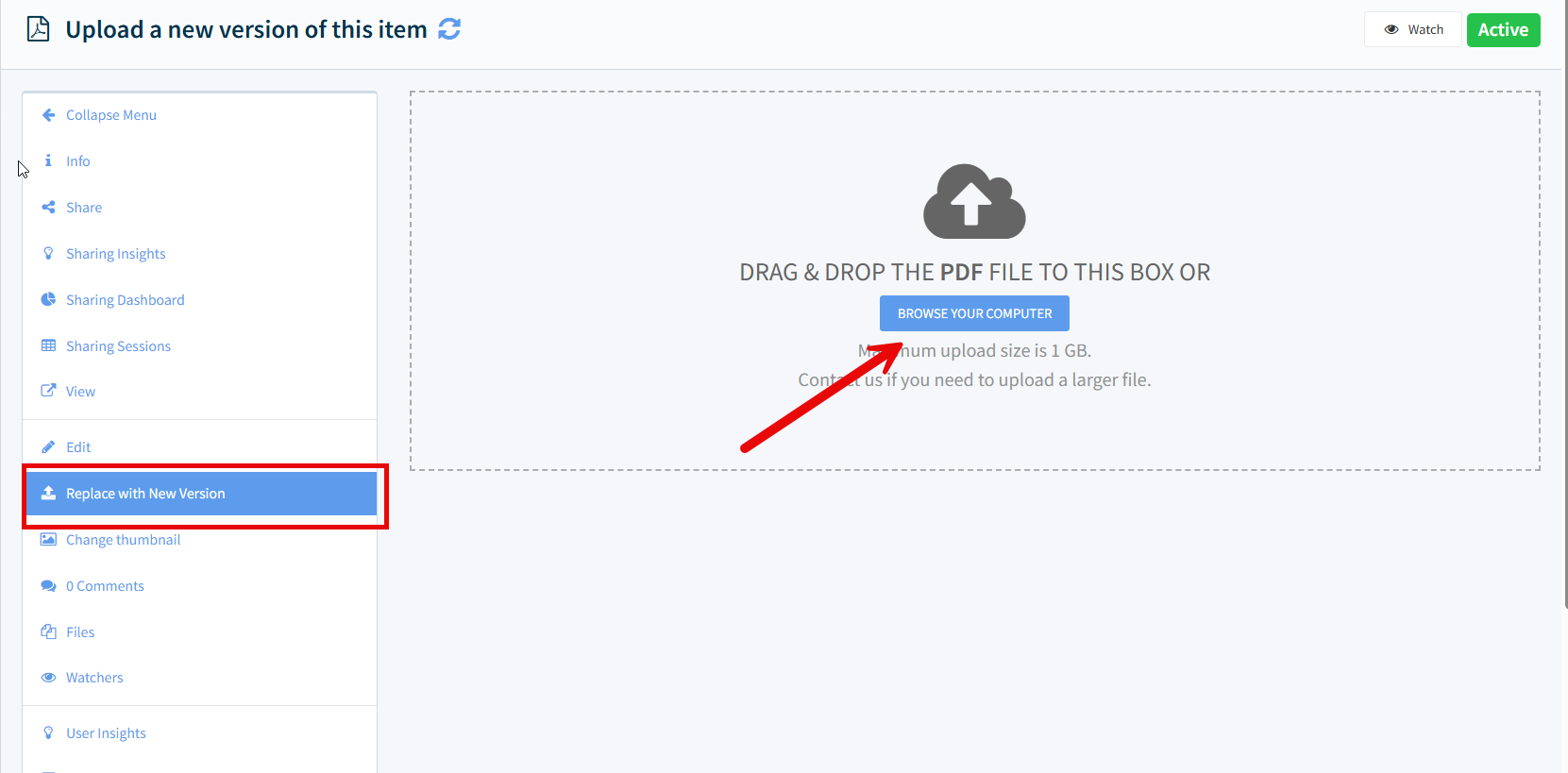
- Go to your Mobile Locker presentation
- Click Replace with New Version (or upload as a new presentation)
- Select the newly saved file from your computer
- The upload should now complete successfully
Still Having Issues?
If you've tried these steps and still cannot upload your file, please contact support with:
- The presentation name or ID
- The original file (if possible)
- Any error messages you're seeing
- When the issue started occurring
We'll investigate further and help resolve the issue.