Manage Contacts
Managing your email contacts is crucial for ensuring smooth communication. This guide provides a brief overview of the key steps involved in effectively managing your email contacts.
On this page:
Add a contact
To add a new contact, click on Contacts.
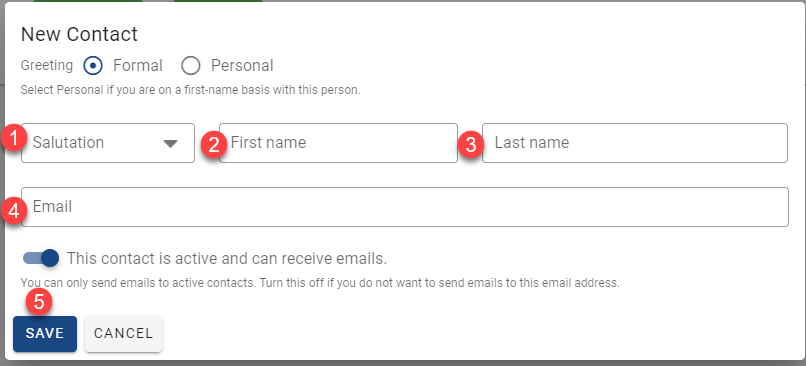
Select "New Contact".
Simply fill in the Salutation, First Name, Last Name, and Email Address, then click Save.
Deactivate a Contact
You cannot delete a contact in Mobile Locker, but you can deactivate them.
Go to Contacts.
Disabling the toggle for "Active Contacts" will allow you to view all statuses, whether they are Active or Inactive.
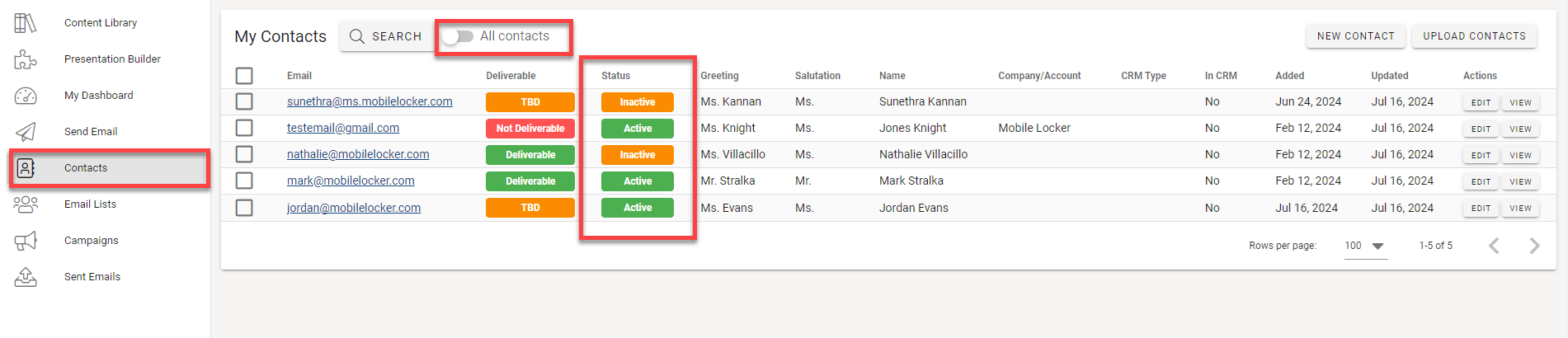
Find the person and click their email address.
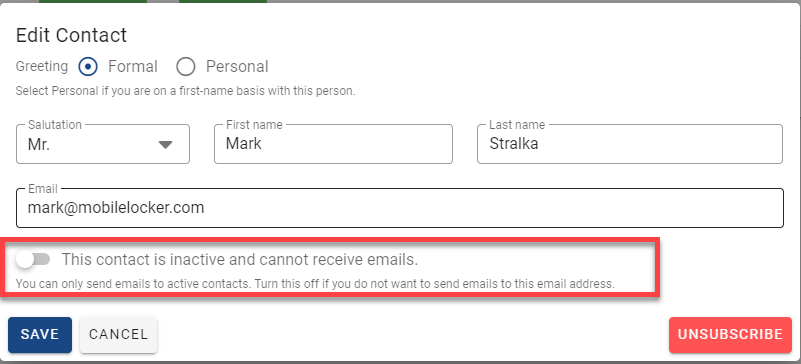
Toggle off to show "This contact is inactive and cannot receive emails," then click Save.
Reactivate a Contact
To reactivate a contact, click Contacts.
Toggle off "All Contacts" to view all statuses.
Search for the contact.
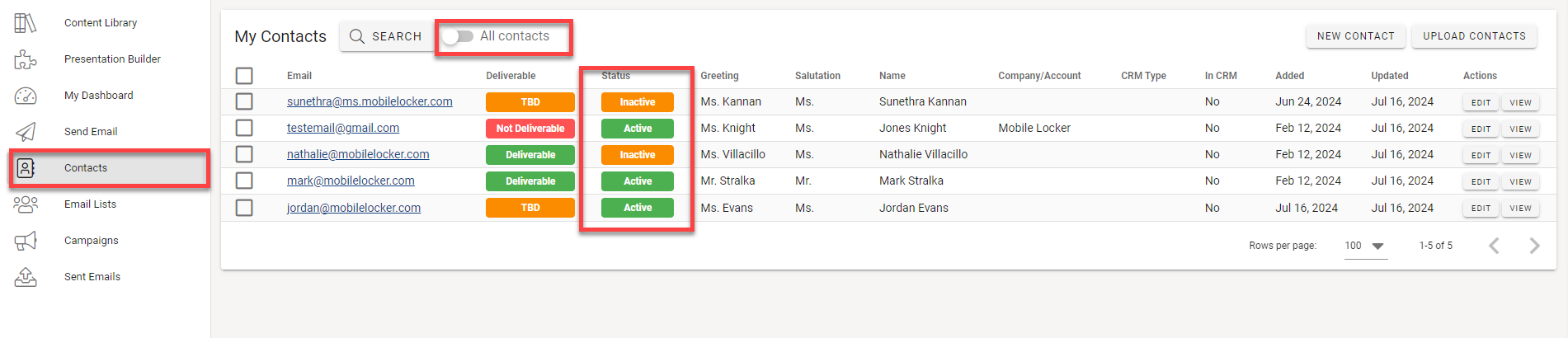
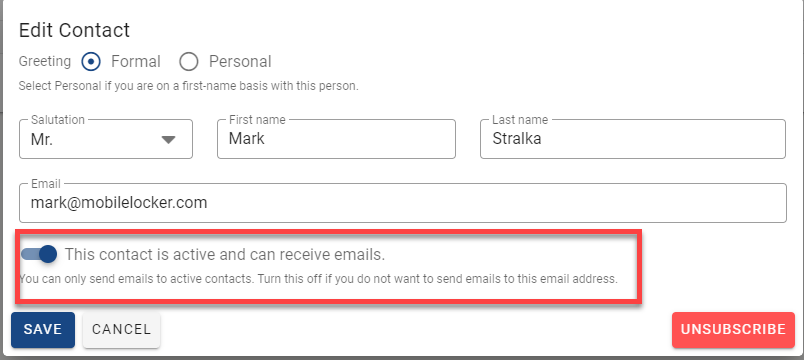
Toggle on to show "This contact is active and can receive emails", then click Save.