
How to Update iPadOS
Keeping your iPadOS up to date ensures the best performance and compatibility with apps like Mobile Locker. Follow the steps below to update your iPad. If you are using a company-managed iPad, you may not be able to update on your own. Please contact your IT department to request the update be pushed to your device.
Before You Start
- Make sure your iPad is connected to Wi-Fi
- Ensure your iPad has at least 50% battery or is plugged into a charger
- Back up your iPad to iCloud or your computer before updating (recommended)
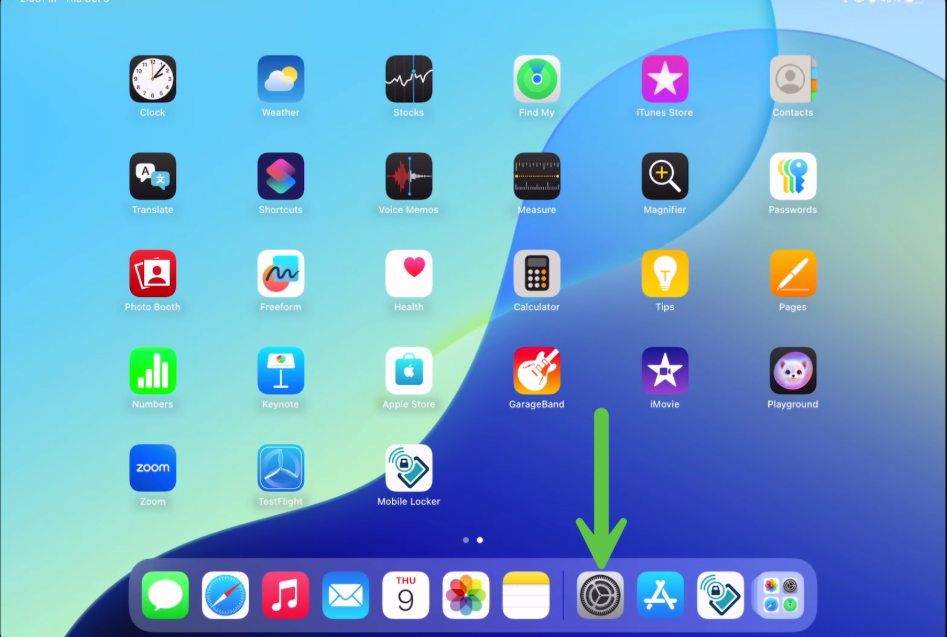
Step 1: Open Settings
Tap the Settings app on your iPad's home screen.
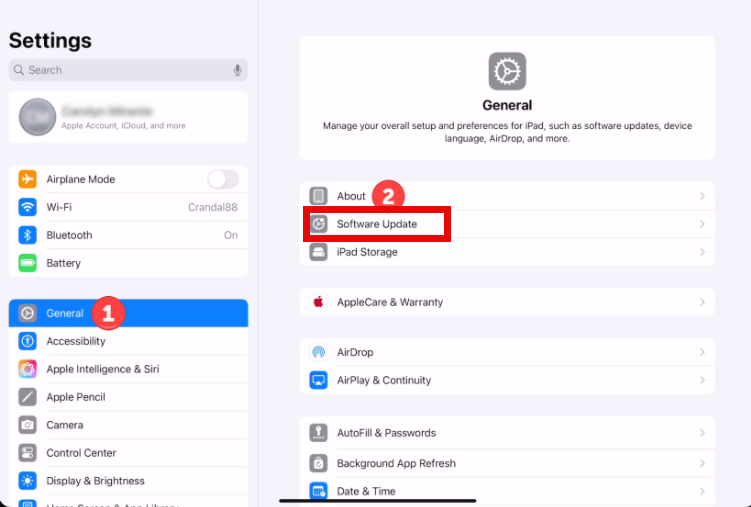
Step 2: Go to General
Scroll down and tap General.
Step 3: Tap Software Update
Tap Software Update. Your iPad will check for available updates.
Step 4: Download and Install
If an update is available:
- Tap Download and Install
- Enter your passcode if prompted
- Tap Agree to accept the Terms and Conditions
- The update will begin downloading
Note: If you see "iOS/iPadOS is up to date", your device is already running the latest version.
Step 5: Install the Update
Once the download is complete:
- Tap Install Now (or it may install automatically)
- Your iPad will restart during the installation process
- Wait for the installation to complete — this may take a few minutes
Once your iPadOS is updated, please also update the Mobile Locker app by going to the App Store, searching for MobileLocker, and tapping Update if available.