
Reload CRM customers in the Windows app
The Windows app stores CRM records on your PC. If your territory changed, or support asked you to refresh CRM data, sync again. These steps are not the previous Desktop app, and they are not the iOS Update / Download all customers / Reload menu.
Sync CRM data
- Open the customer picker. In Content Library, click the person icon (Select Customer) if your team shows it. Or open a presentation and click the people icon in the title bar.
- In the Select CRM Customer window, click Sync (download icon) in the top right.
- Wait until Syncing CRM data finishes. A progress line can appear under that title.
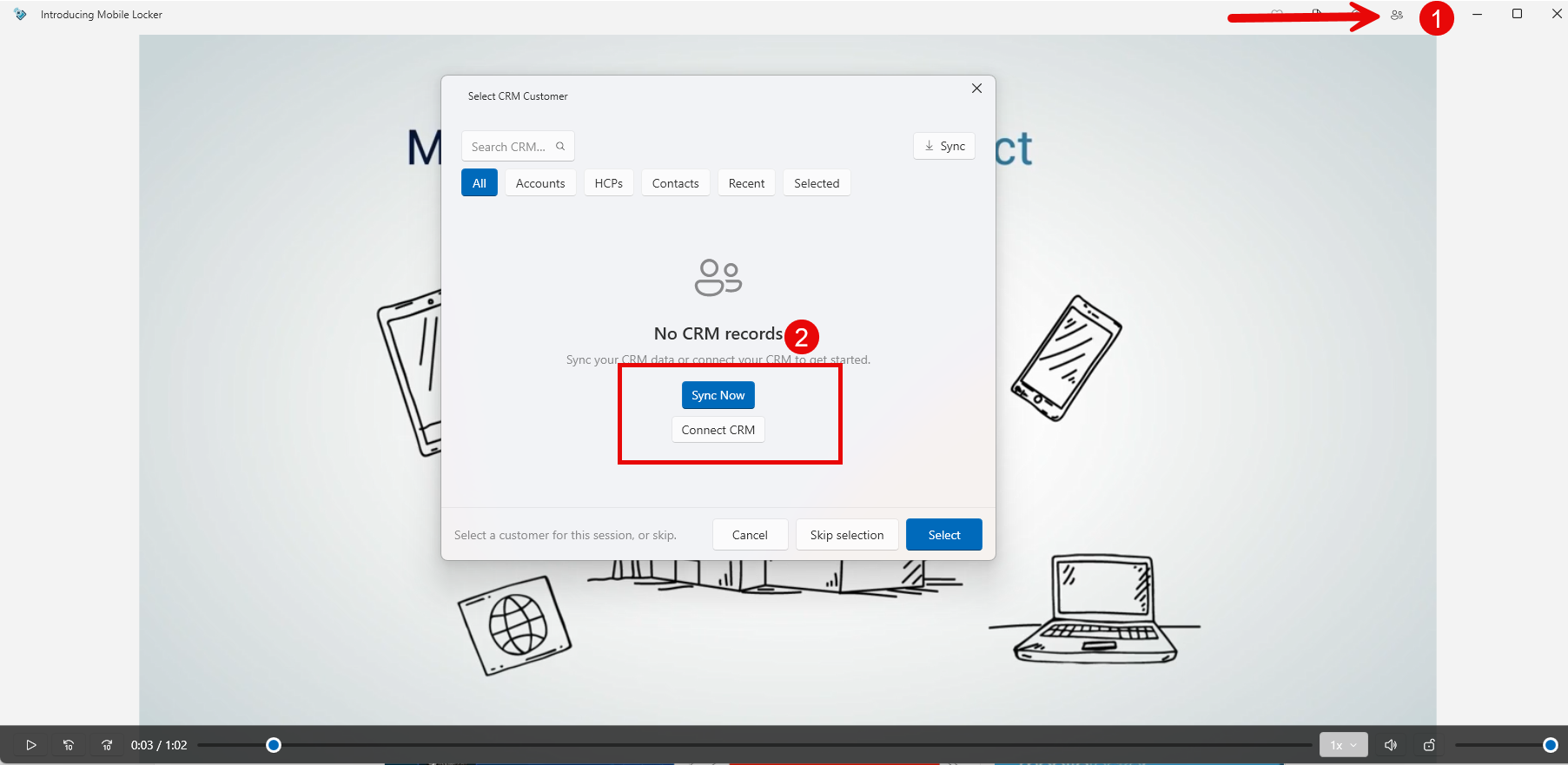
If the list is empty, click Sync Now on the empty state, or Connect CRM if you have never connected.
You can still search and filter while records are present: All, Accounts, HCPs, Contacts, Recent, Selected.
If sync fails
- Check that you are online. The app may show that it could not reach the server.
- If you are not connected to CRM, connect first (see connect to CRM in this category).
- Use Help > Report a Problem, or send diagnostic logs from Settings.