
How to send diagnostic logs from the Windows app
When support asks for logs from the Mobile Locker Windows App, send diagnostic logs from Settings. Do not use the previous Desktop app Help menu Send Debug Logs.
Send diagnostic logs
- In the left sidebar, click your profile at the bottom.
- Click Settings.
- Scroll to Diagnostics (this section appears when diagnostics are enabled for your build).
- On Send Diagnostic Logs, click Send.
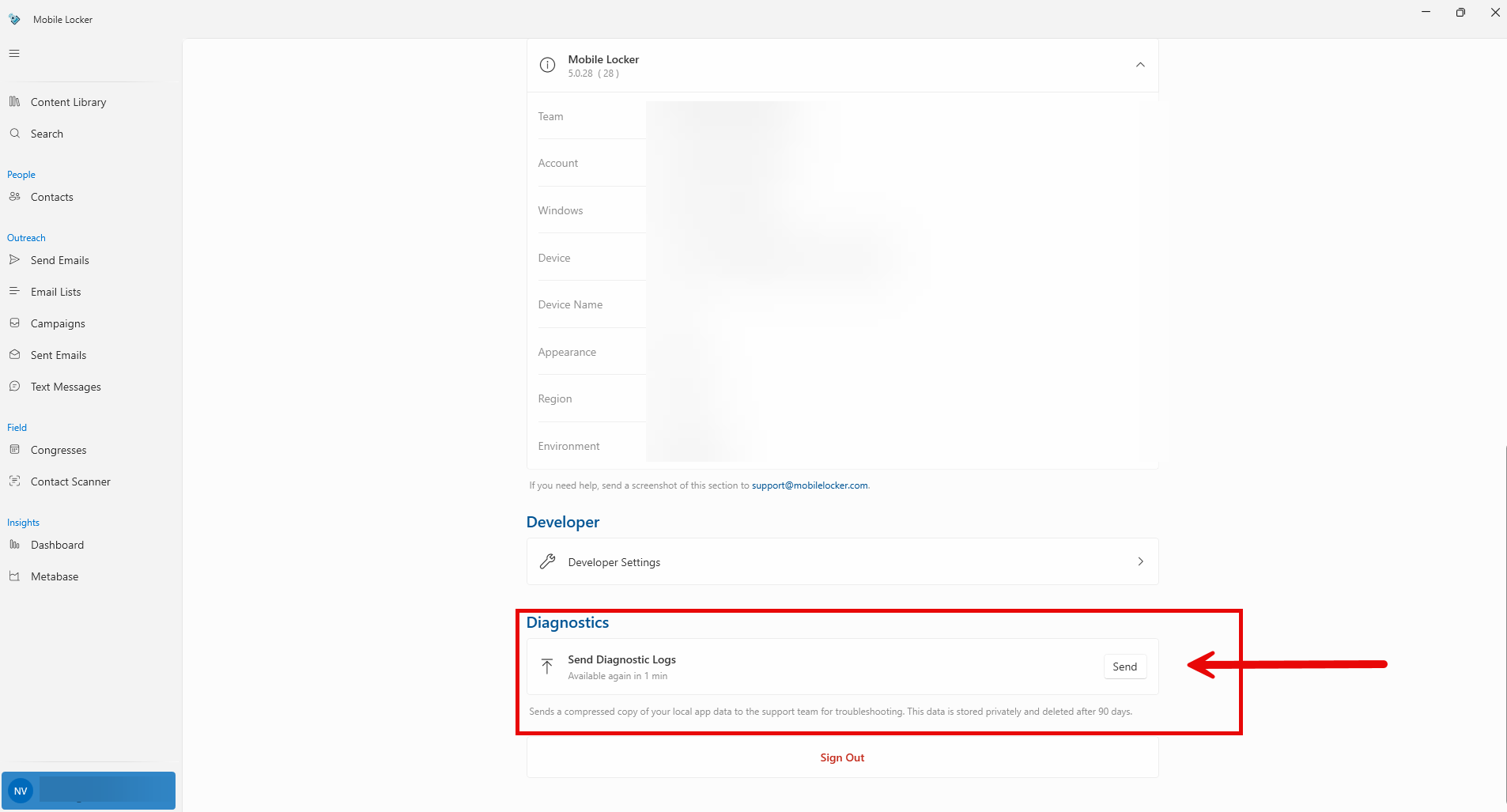
The help line says the app sends a compressed copy of your local app data to the support team. That data is stored privately and deleted after 90 days.
If a send just succeeded, you may have to wait before the next send. The card can show Available again in N min.
Success: Diagnostic logs were sent. Failure: Failed to send diagnostic logs. Then use Help > Report a Problem or email support@mobilelocker.com.
Also send a screenshot of Settings > About so we have your version, team, and device.