
How to send an email from the Windows app
Send email from the Mobile Locker Windows App with the native compose screen. This is not the previous Desktop app Send Email window.
Open compose
- In the left sidebar, click Send Emails.
- Start a new email. The page name is New Email. The subtitle is Compose and send from a template.
You can also start compose from a contact, a presentation share action, or Search, when those screens offer email.
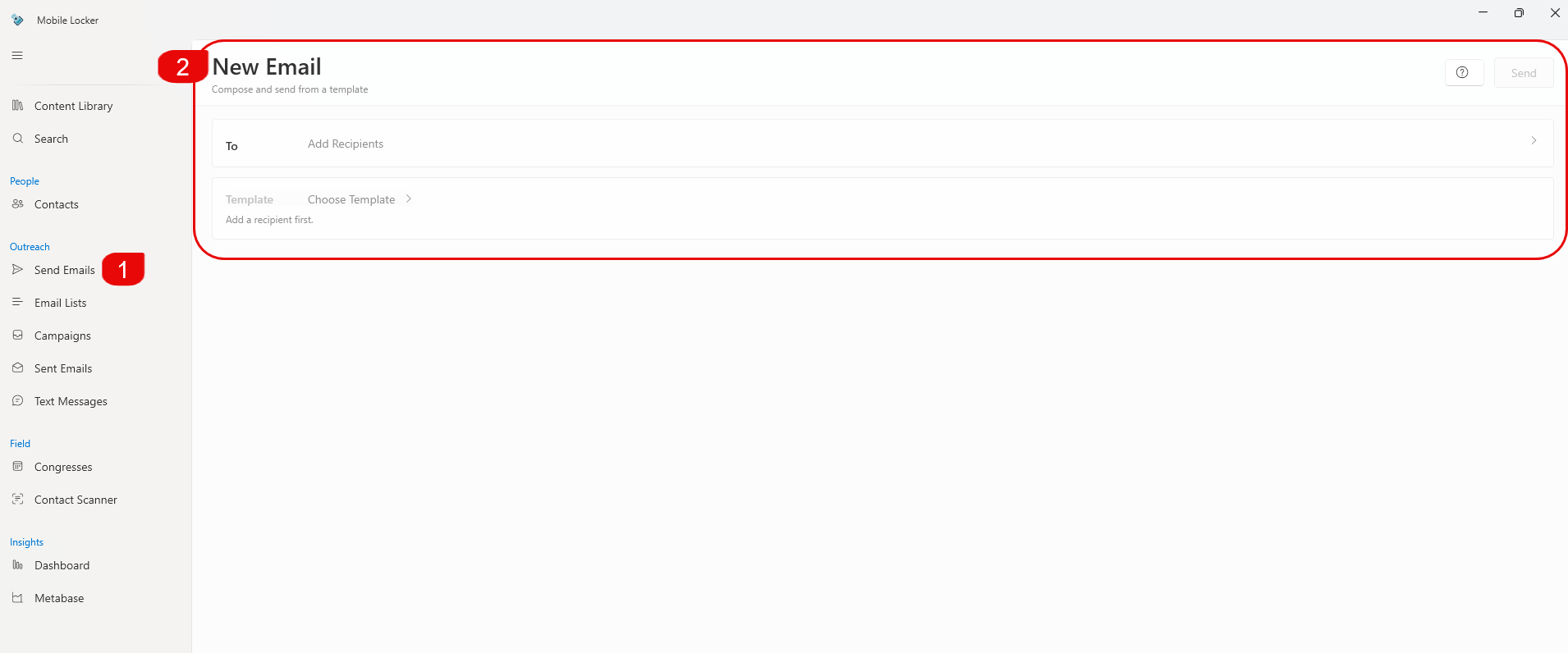
Add recipients
- On the To row, click the chevron to edit recipients.
- Search contacts or lists and add people. You can expand names on the canvas, then click Show less.
Send stays disabled until recipients, template, and required fields are complete. The Send tooltip says to complete those items.
Choose a template
- On the Template row, click the chevron.
- Pick a template. After you select one, a Subject section appears. Some templates let you edit the subject or pick from Subject Options.
Personalize and send
Depending on the template, you may also see:
- Personalize fields (text, lists, date, time)
- Insert Fragments when your team uses fragments
- File or space pickers when the template needs content
- Fill required fields.
- Preview if the compose flow offers it.
- Click Send in the top right.
- Click Cancel to discard the draft.
If send fails, the app shows Couldn't send this email. You can retry or close.
If you are offline
A warning can say You're Offline: you can keep editing, but you must connect to send.
Sent items live under Sent Emails in the sidebar. Campaigns are under Campaigns when your team has them.