
Camera and notifications permissions on Android
Android 12 and later ask for permissions when Mobile Locker needs them. Contact Scanner and badge capture need the camera. Download progress and other alerts need notifications.
On this page
Notifications
The first time the app needs notifications, Android can show a system prompt. Tap Allow.
You can also change this inside Mobile Locker:
- Open Settings.

- Find the Notifications section.
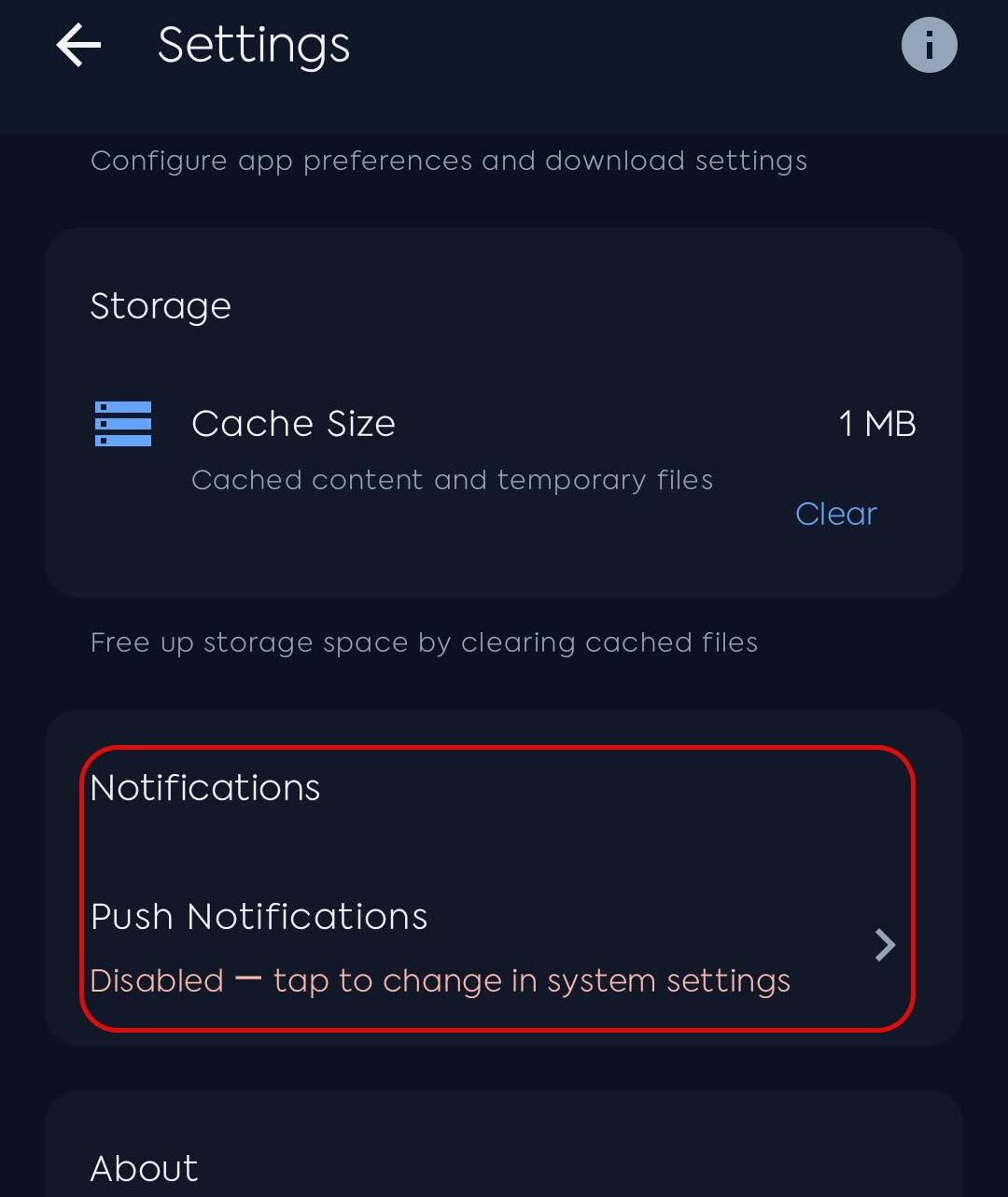
- Tap the row. It shows Enabled or Disabled (tap to change in system settings).
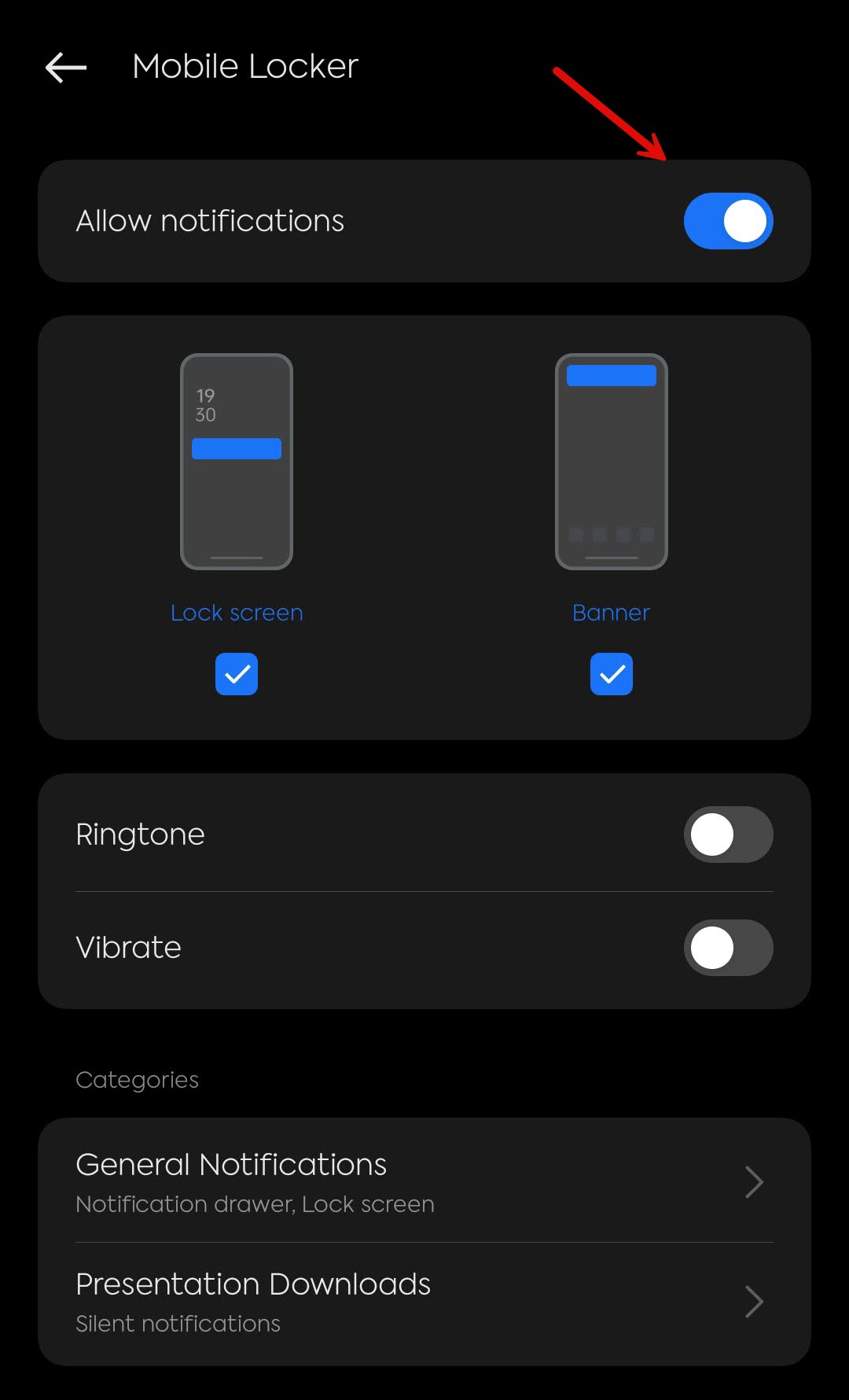
- Android opens notification settings for Mobile Locker. Turn notifications on.
Camera
When you scan a badge or use Contact Scanner, the app may say that camera permission is required to scan badges. Tap Allow on the Android prompt.
If you already denied it:
- Open Android Settings (the device app).
- Tap Apps, then Mobile Locker.
- Tap Permissions.
- Tap Camera and allow it.
Photos
If you pick an existing image for Contact Scanner, Android may ask for photos access. The app can show that photo library permission is required to select an image. Allow it, or pick a file from the system picker when Android offers that path.
If you denied a prompt
Android will not always ask again. Use Apps, Mobile Locker, Permissions, then turn the permission on. Return to Mobile Locker and try the scan or download again.