
How to send an email from the Android app
Send email from the Mobile Locker Android App with the native compose screen titled New Email. This is not the system Gmail or Mail app.
Open compose
- On a phone, tap Send Emails in the bottom bar (if your team allows email). On a tablet, open Send Emails under Outreach in the rail.
- Start a new email. The title is New Email.
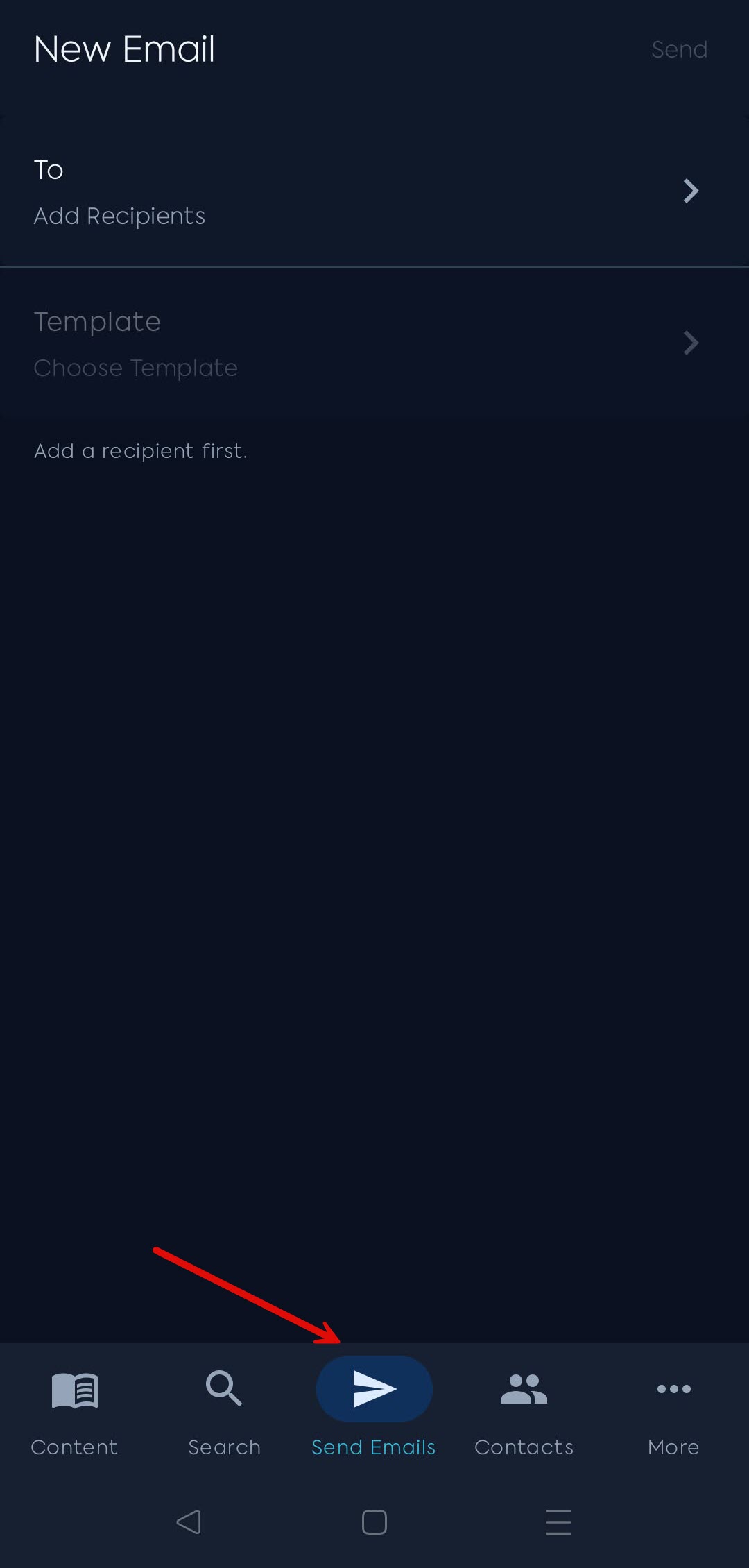
You can also start compose from a contact, a presentation share action, Search, or Contact Scanner, when those screens offer email.
If you never see Send Emails, your team or account may not have email. Ask your administrator.
Add recipients
- On the To row, tap to open Add Recipients.
- Search contacts (Search contacts) or choose Send to a List….
- An email can go to individual contacts or one list, not both. If you pick a list, the app can ask Replace recipients with a list?
Tap Show Less to collapse names on the canvas. Send stays disabled until recipients, template, and required fields are complete.
Choose a template
- On the Template row, tap Choose Template.
- Browse Featured, Recently Used, or All. Search templates if the list is long.
- After you select one, a Subject section appears. Some templates lock the subject.
If you change template later, the app can ask Change template? Personalization answers will be cleared.
Personalize and send
Depending on the template, you may also see:
- Personalize Your Message
- Insert Fragments when your team uses fragments
- Choose Files or Choose Spaces when the template needs content links
- Preview / Preview Email
- Schedule / Schedule send when your team allows it (up to 90 days)
- Fill required fields. The app can say to fill required fields before sending.
- Tap Send. A Send Email confirmation can appear.
- Close the compose screen to discard. The app can ask Discard this email? with Discard or Keep Editing.
If send fails, the app shows Couldn't Send. You can retry or close.
If you are offline
A warning can say You're Offline: you can keep editing, but you must connect to send. Live preview also needs a connection. Templates may say they are not available offline yet until they have synced once.
Sent items live under Sent Emails. Campaigns are under Campaigns when your team has them. On a phone, both are in More, then Tools, under Outreach.