
How to clear cache in the Android app
Clear the Android app cache from Settings, Storage. Do not use Chrome DevTools. This is not the same as Developer Settings (environment and region).
Clear Cache frees stored files on this device. It is not uninstall, and it is not Send Diagnostic Logs.
Clear cache
- Open Settings. On a phone, tap More, then Tools, then Settings.

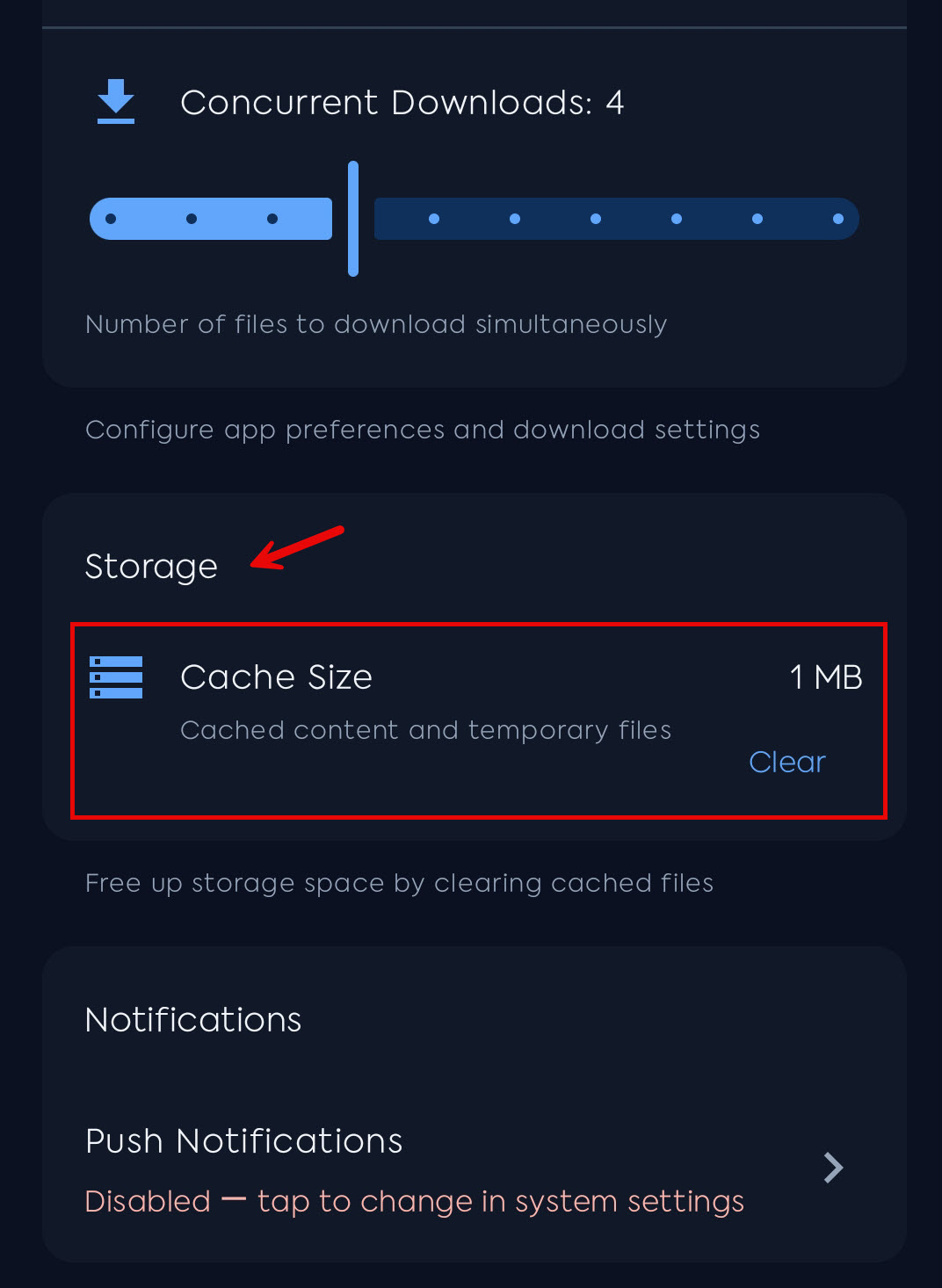
- Find the Storage section. The footer says it frees storage by clearing cached files.
- Read Cache Size (cached content and temporary files).
- Tap Clear.
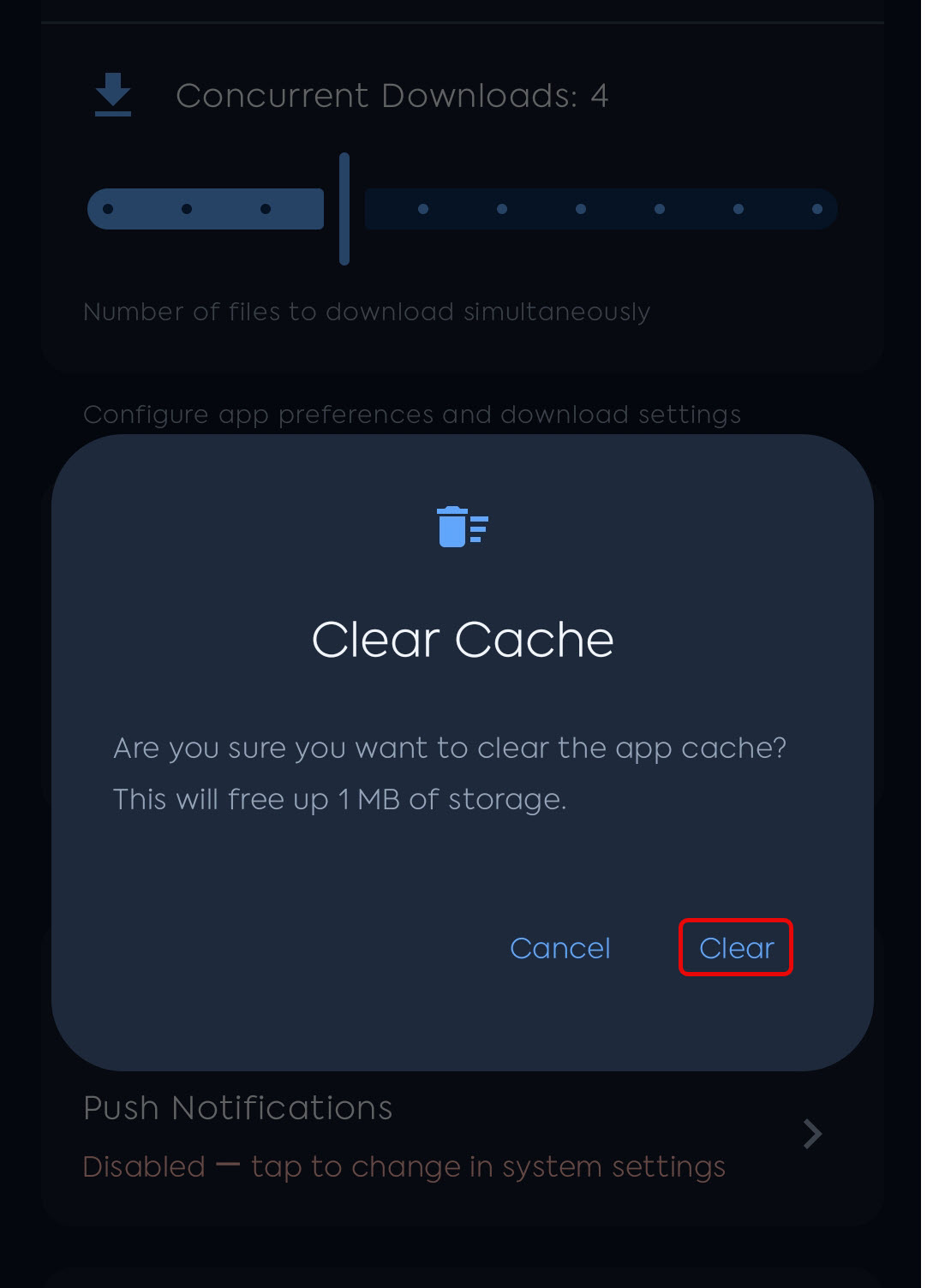
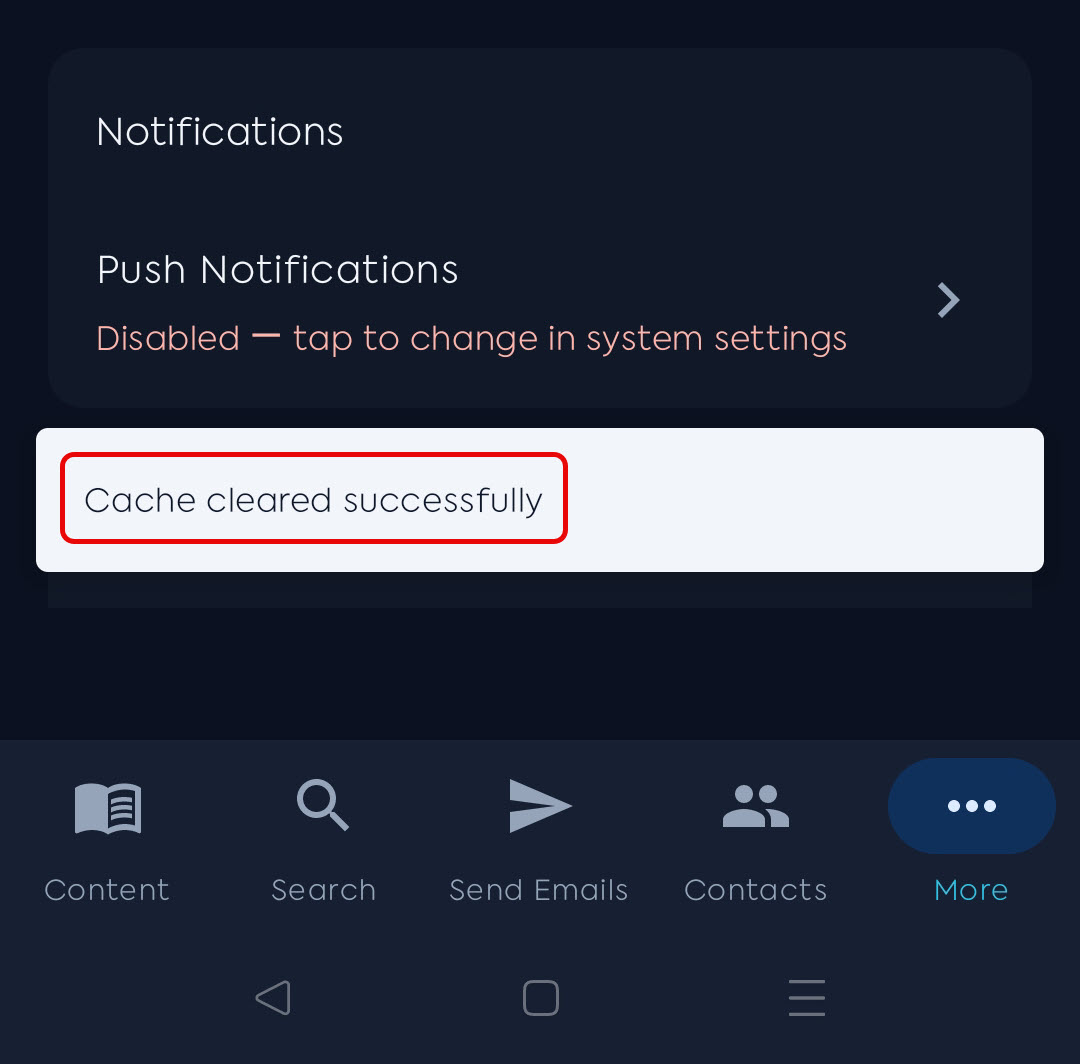
- Confirm Clear Cache. The message asks if you are sure and shows how much storage it will free. Tap Clear or Cancel.
Developer Settings is a different screen (API environment, region, customer-selection test options). Changing Environment or Region there will sign you out. Do not change those unless support asks you to.
If that is not enough
- Pull to refresh Content Library.
- Send diagnostic logs if support asked for them.
- Uninstall does not delete your Mobile Locker account. See uninstall in this category if support gives extra wipe steps.