
How to send diagnostic logs from the Android app
When support asks for logs from the Mobile Locker Android App, send diagnostic logs from Settings.
Send diagnostic logs
- Open Settings. On a phone, tap More, then Tools, then Settings. On a tablet, open the account menu (your name or photo) and tap Settings.

- Scroll to Diagnostics (this section appears when diagnostics are enabled for your team).
- On Send Diagnostic Logs, tap the upload control.
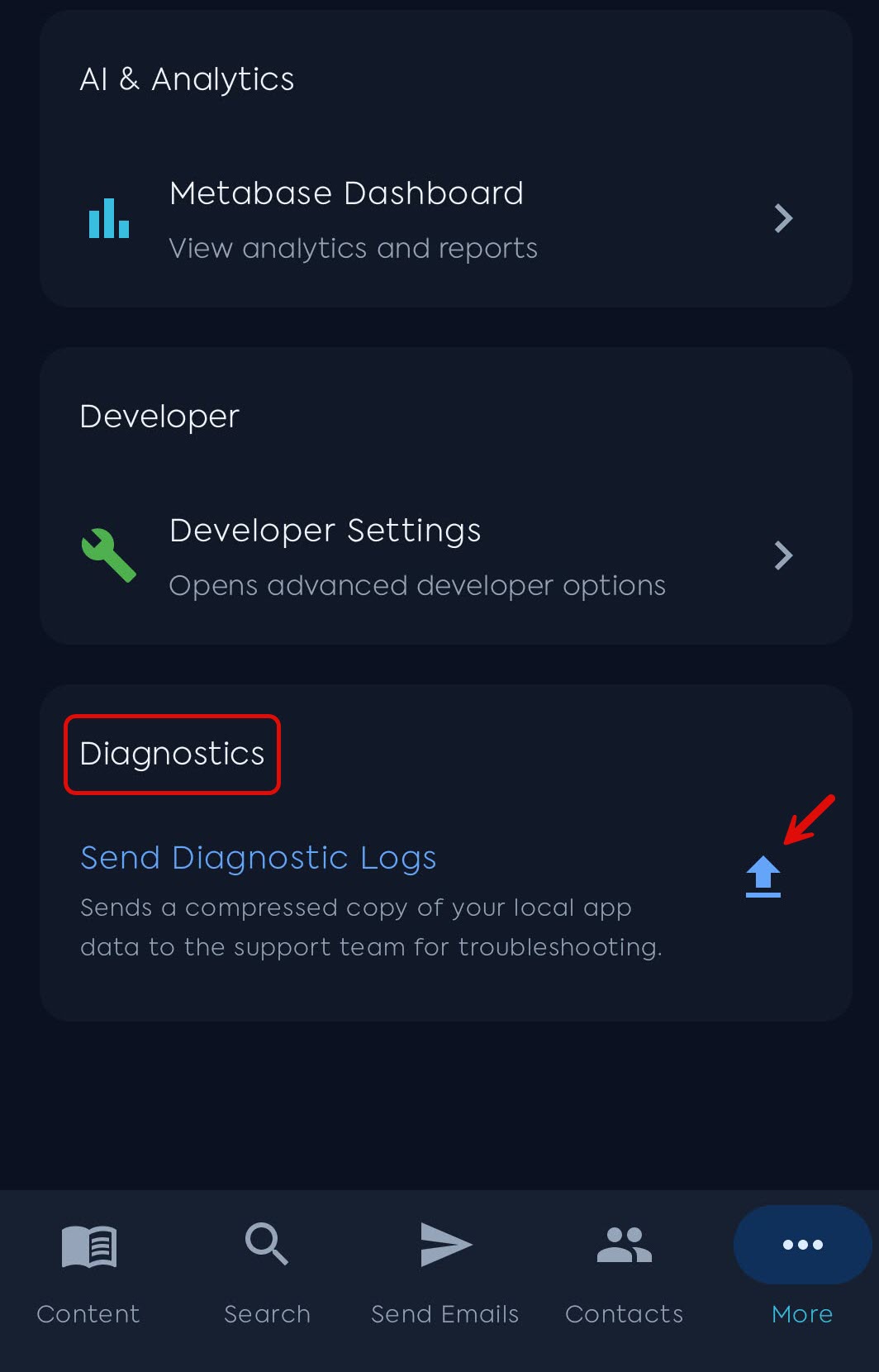
The help line says the app sends a compressed copy of your local app data to the support team for troubleshooting.
If a send just succeeded, you may have to wait before the next send. The row can show Available again.
Success: Diagnostic logs sent successfully. Failure: Upload failed: plus a short reason. Then use Help, Report a Problem, or email support@mobilelocker.com.
Also send a screenshot of Settings, About so we have your version, team, Android version, and device.