
View Fax Message History and Export to CSV
Faxing is an optional feature for an additional fee. Contact your Mobile Locker account manager to learn more about this functionality.
Administrators with Can edit faxes can review all fax messages sent by your team, filter by date and status, and export results for compliance or operational review.
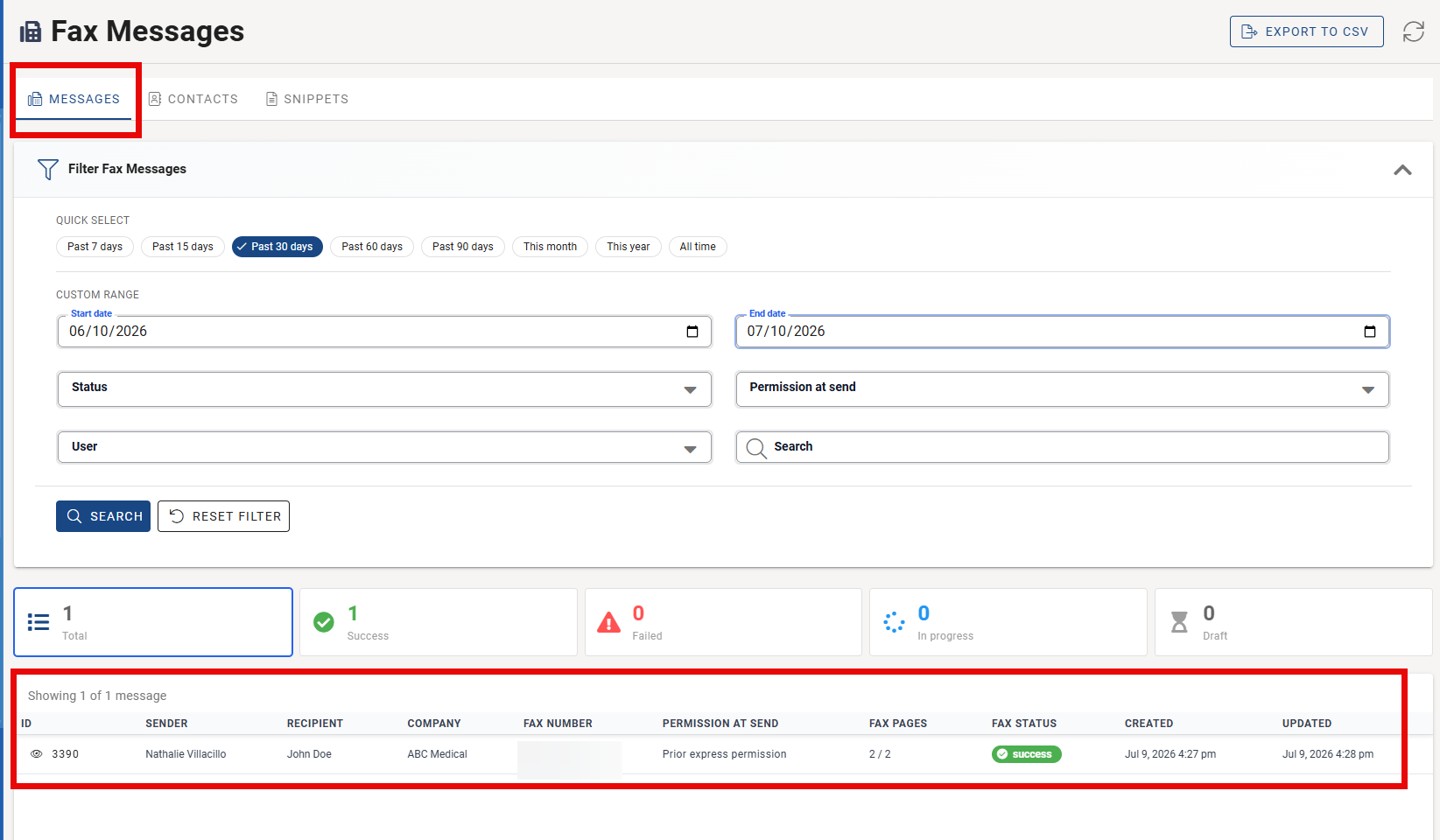
Open admin Fax Messages
- In the admin sidebar, click Faxes (opens Messages by default).
Direct link: Admin Fax Messages
Filter messages
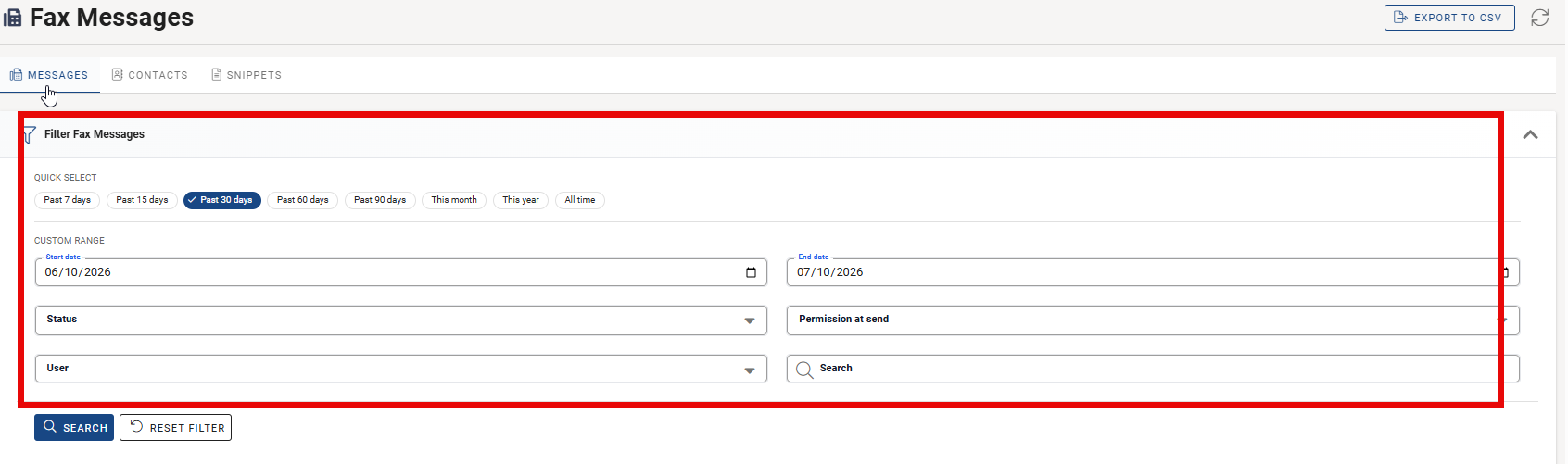
Expand Filter Fax Messages:
| Filter | Use |
|---|---|
| Quick select | Last 7 / 30 / 90 days, etc. |
| Start / End date | Custom range |
| Status | success, failed, sending, draft, … |
| Permission at send | Attested vs permission not recorded at send time |
| Search | Recipient, company, fax number; admins can also search by sender |
Click Apply. The header shows a summary of active filters and count chips by outcome when available.
View message detail
Click a message ID to open the detail page: sender, recipient, file, pages, status, events timeline, and permission snapshot at send time (basis, how number was obtained if EBR, notes, who attested and when).

Export to CSV
- Apply filters so the list reflects the rows you need.
- Click Export to CSV.
The file includes columns for delivery data and permission-at-send fields. Maximum 10,000 rows per export; narrow the date range or status if you hit the limit.
Decide internally who may run exports and how CSV files are stored and retained.
Permission not recorded at send time
Messages sent before permission tracking, or sent when attestation was missing, may show Permission not recorded at send time. That label is neutral operational history—not a legal conclusion. New sends require attestation on the contact.
User-facing message list
Users with send permission see their own messages under Fax Messages in the content library, with similar filters and CSV export for their visible scope.