
Manage Fax Unsubscribe and Resubscribe
Faxing is an optional feature for an additional fee. Contact your Mobile Locker account manager to learn more about this functionality.
Mobile Locker supports opt-out in two ways: recipients use a public unsubscribe page, and administrators can unsubscribe or resubscribe contacts manually.
Cover page unsubscribe (recipients)
Every fax cover page includes:
- A Message ID
- A link to https://app.mobilelocker.com/fax/unsubscribe
- An unsubscribe code (format
ABCD-1234)
The recipient enters the code on that page without logging in. Mobile Locker unsubscribes the matching fax number for your team and blocks future sends.
See Fax Cover Page and Unsubscribe in the Users collection for sender-facing details.

Unsubscribe a contact (admin)
- Go to Admin Fax Contacts.
- Open the contact and click Edit.
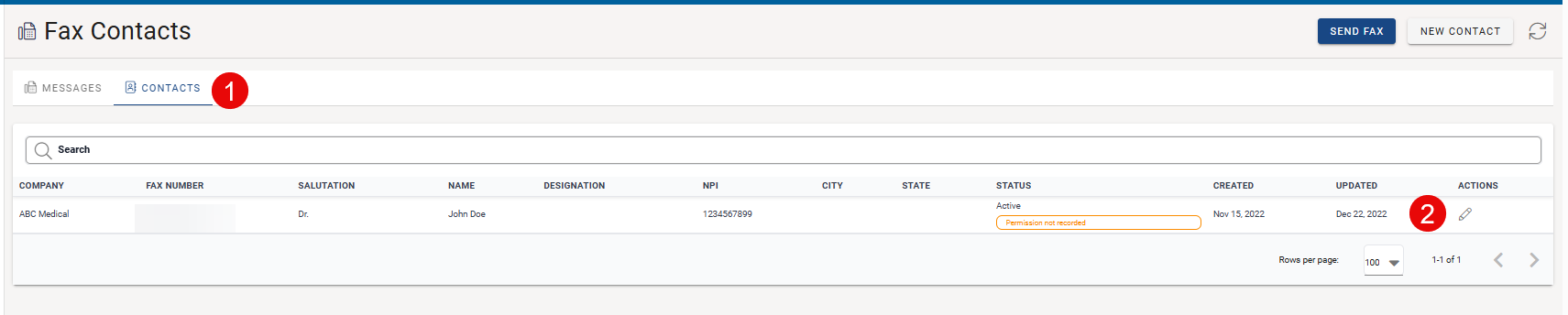
- Click Unsubscribe (or set status to Unsubscribed if using legacy status controls on older workflows).
Unsubscribe applies to the same team + country + fax number combination, consistent with recipient-initiated opt-out.

Resubscribe a contact (admin)
- Edit an unsubscribed contact.
- Click Resubscribe.
Only resubscribe when your organization has a valid reason (for example, recipient requested to receive faxes again and you have documentation). Permission attestation must still be valid after resubscribe.
Unsubscribe vs permission attestation
- Unsubscribe always wins. A contact with permission on file cannot receive sends while unsubscribed.
- Updating permission fields does not remove an unsubscribe.
Legacy status field
Older articles described changing a contact Status dropdown to Unsubscribed. The admin edit screen now provides explicit Unsubscribe / Resubscribe actions. Either path prevents new sends to unsubscribed numbers.