
How to favorite presentations on Windows
Favorites are your shortcuts to presentations you use often. They are personal to your account. On Windows, the control is a heart named Favorite.
Before you start
- Favorites must be enabled for your team. If you never see a heart, ask your administrator.
- Favoriting does not download the presentation. Install it from Content Library if you need it offline or in Open Presentation.
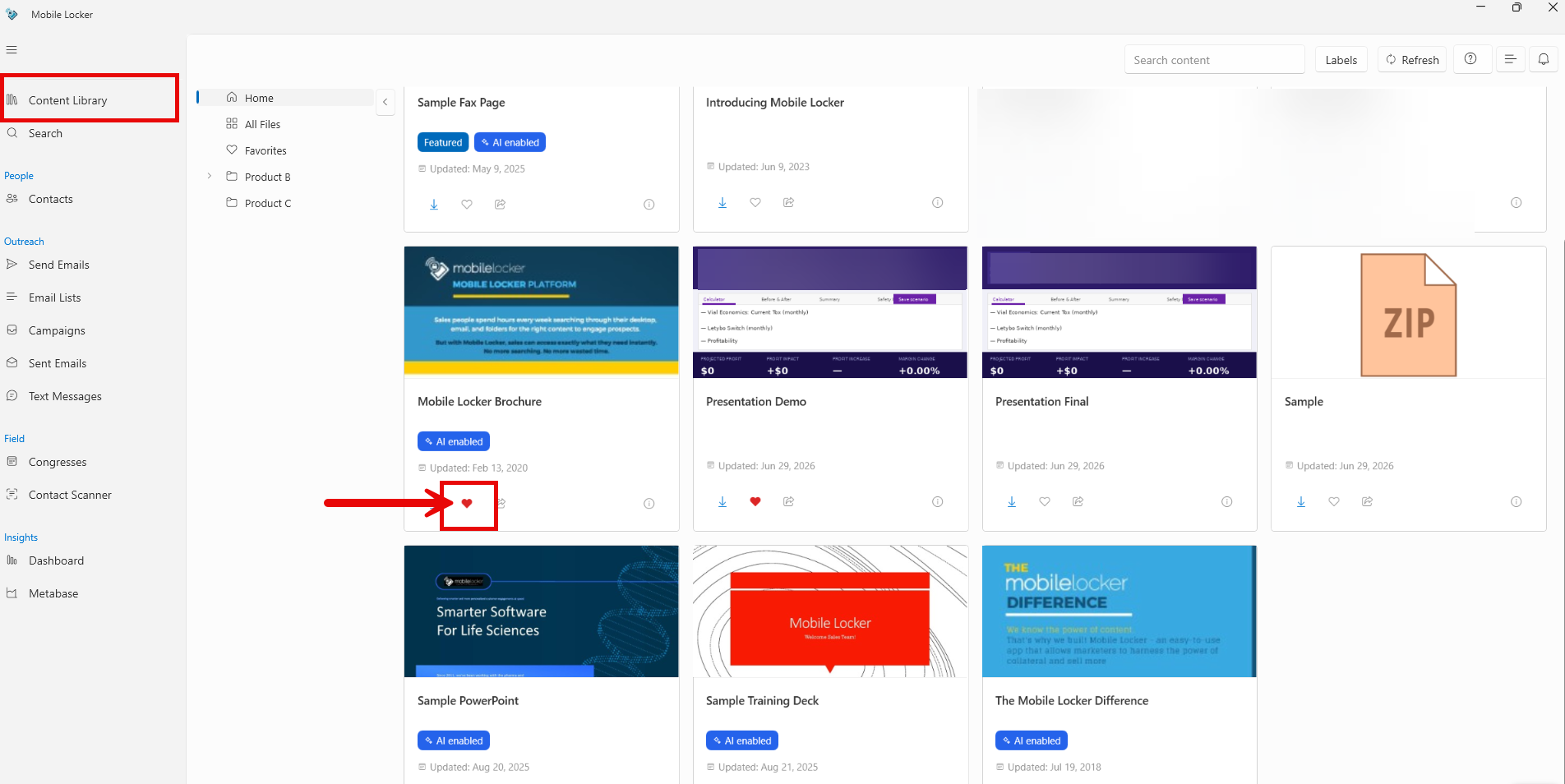
From Content Library
- Open Content Library in the left sidebar.
- Find the presentation in the grid or list.
- Click the heart (Favorite) on the card. Click again to remove it.
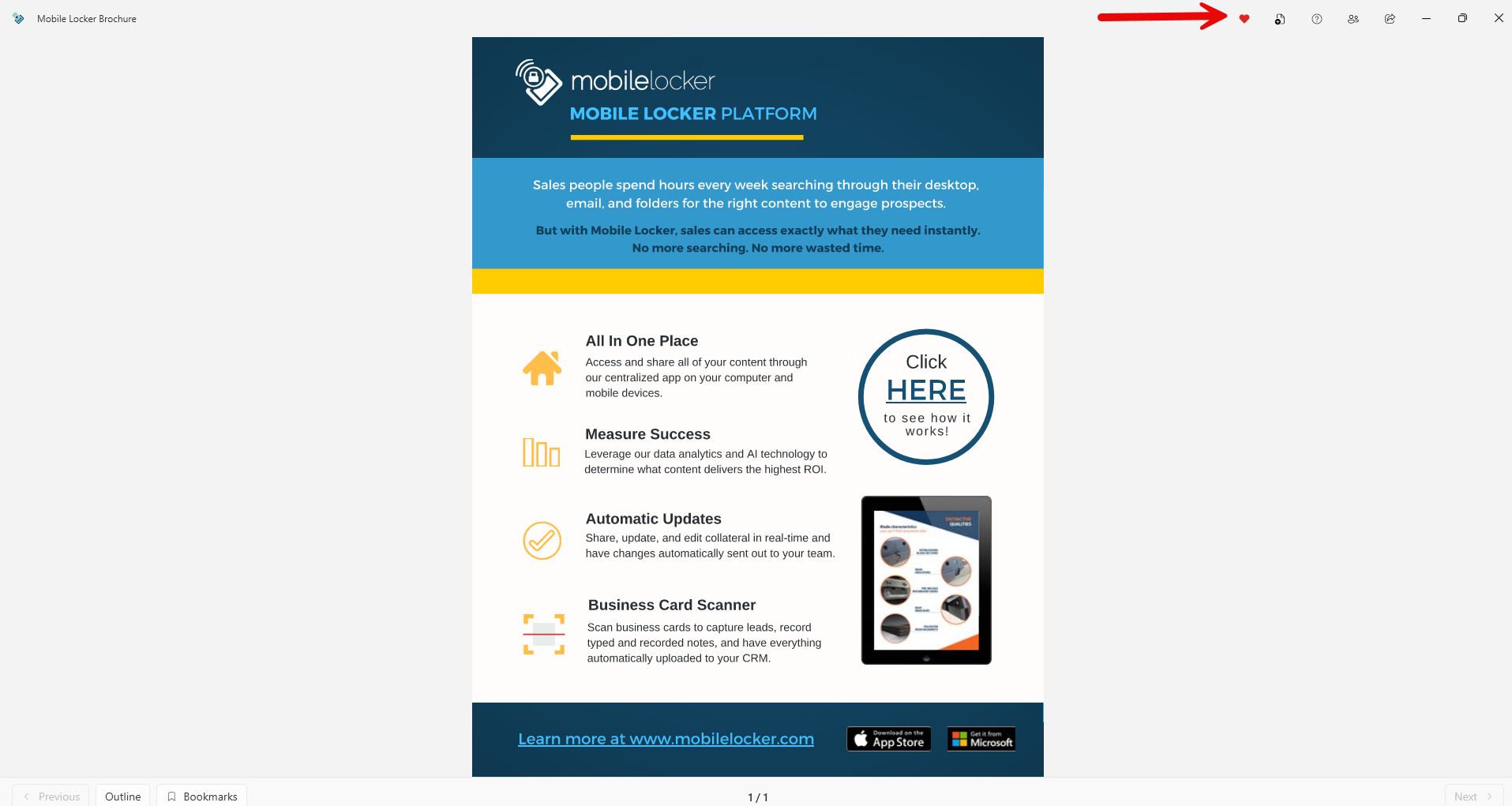
While viewing a presentation
- Open the presentation.
- In the title bar, click the heart (Favorite).
The heart is hidden when favorites are not enabled for your team.
Find your favorites
- Open Content Library.
- In the folder tree, click Favorites (heart icon) when that folder is shown.
Favorites appears in the tree when you have at least one bookmarked, non-expired presentation.
Troubleshooting
| Problem | What to do |
|---|---|
| No heart anywhere | Favorites may be off for your team. Ask your administrator. |
| Favorite missing from the Favorites folder | Click Refresh in Content Library. Confirm you saved the heart. |
| Favorite missing from Open Presentation | The presentation must be installed. The one already open is not listed again. |