
How to open another presentation on Windows
While a presentation is already open, you can open a different installed presentation without going back to Content Library first.
Before you start
- The presentation you want must be installed on this PC.
- A presentation that is already open is not listed again. Windows focuses the existing window instead if you try to open the same deck.
Open the picker
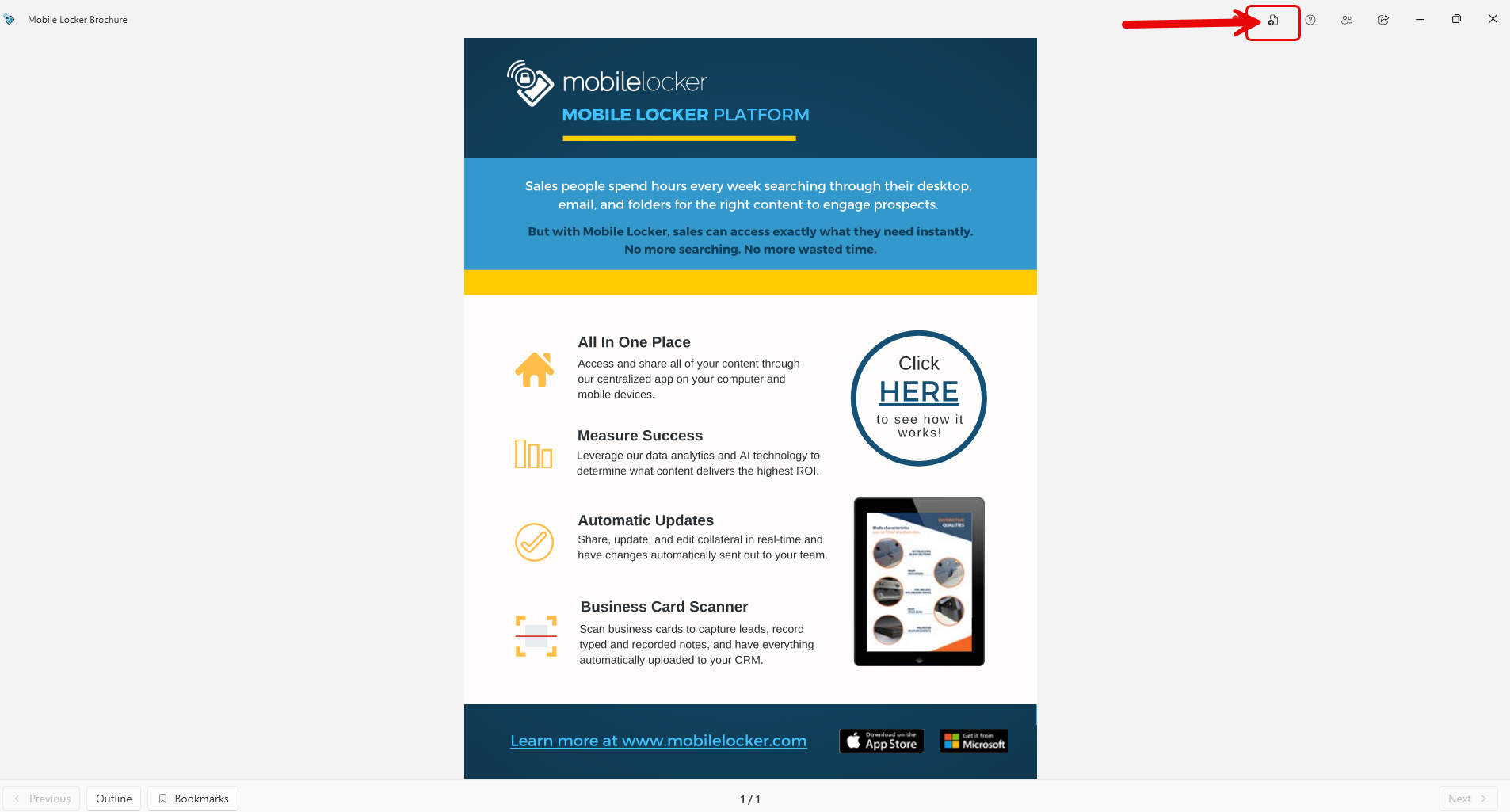
- Open a presentation.
- In the title bar, click Open another presentation (document-plus icon).
The window title is Open Presentation.
Choose a presentation
- Scroll the list, or type in Search presentations (matches the presentation name).
- Select a row and click Open, or double-click the row.
- Click Cancel to stay on the current presentation.
Installed presentations are sorted with bookmarked decks first, then featured, then by name. There is no separate Favorites heading in this Windows list (unlike iOS).
Troubleshooting
| Problem | What to do |
|---|---|
| A presentation is missing | Install it from Content Library. The open deck is hidden from this list. |
| The list is empty | Nothing else is installed, or every other installed deck is already open. |
| Search finds nothing | Search matches the name only. Try a shorter part of the name. |