
Manage Fax Contacts
Faxing is an optional feature for an additional fee. Contact your Mobile Locker account manager to learn more about this functionality.
Fax contacts are shared across your team. If you create a contact, teammates can see and use it too. That helps avoid duplicate fax numbers and keeps recipient information consistent.
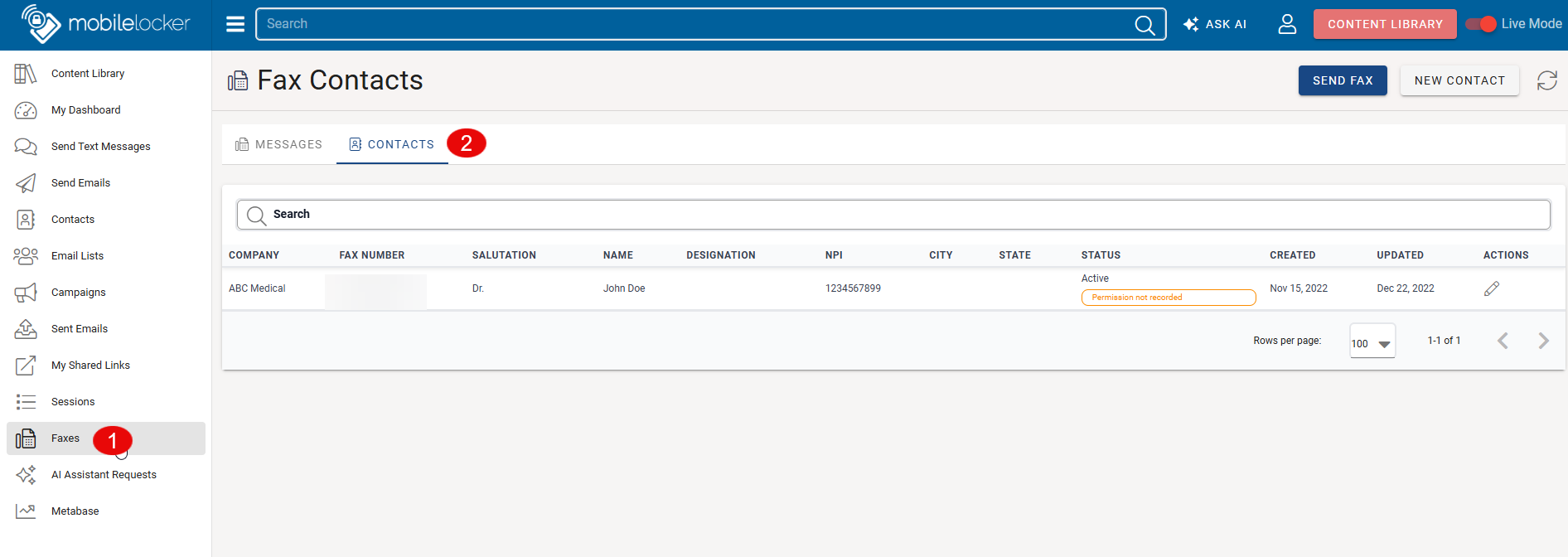
Open Fax Contacts
- In the content library menu, click Faxes.
- Open the Contacts tab.
Direct link: Fax Contacts
Create a contact
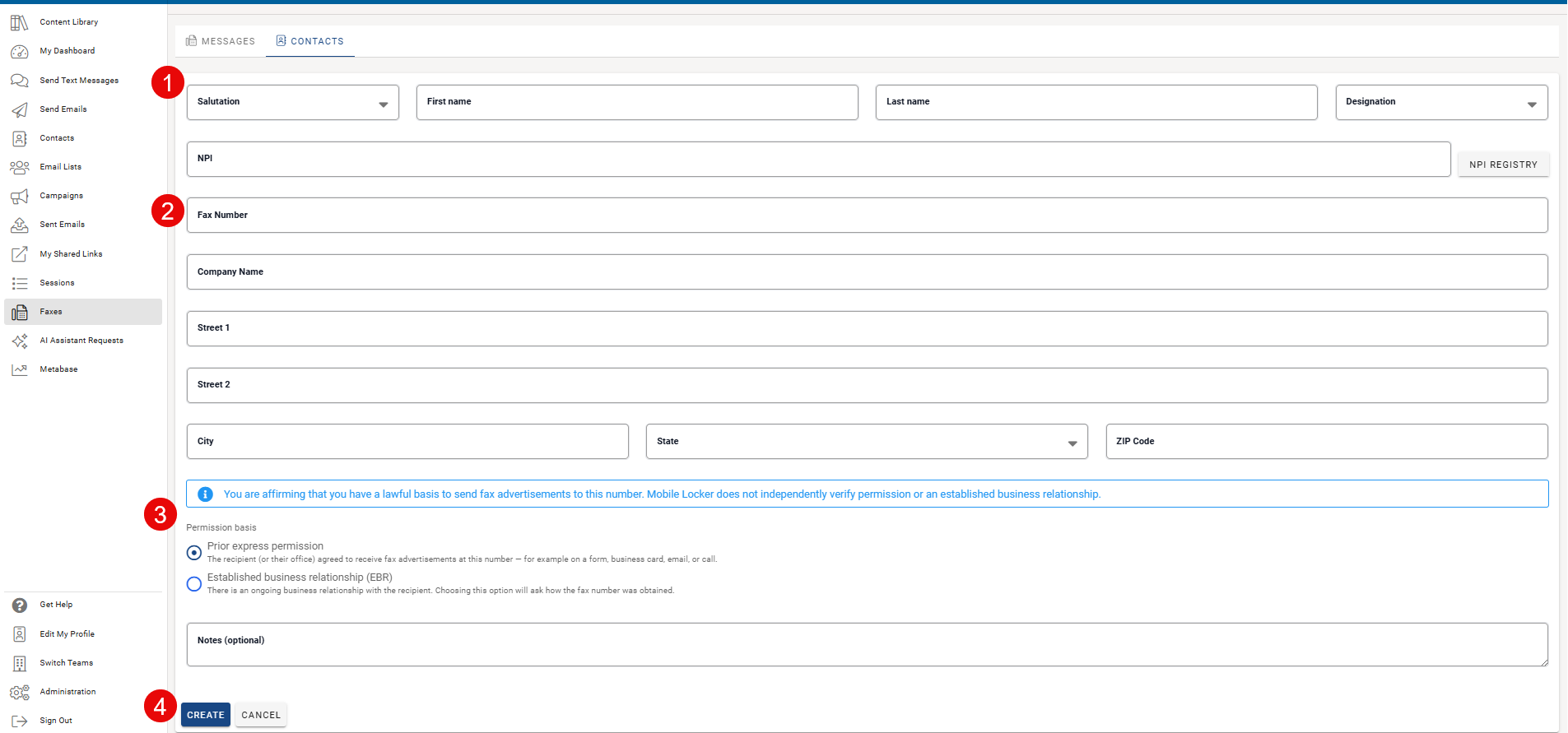
- Click New Contact.
- Enter First name, Last name, and Fax number (required).
- Optionally add salutation, designation, NPI, company, and address fields.
- Complete the Permission basis section (required before anyone can fax this contact):
- Prior express permission — The recipient or their office agreed to receive fax advertisements at this number (for example on a form, business card, email, or call).
- Established business relationship (EBR) — You have an ongoing business relationship that supports faxing under your organization's policies. If you choose EBR, you must also answer How was this fax number obtained?
- Optionally add Notes (for example, "Business card from ASCO 2025") pointing to your own records. Mobile Locker does not store supporting documents.
- Click Create.
Mobile Locker records who completed the permission attestation and when.
Edit a contact
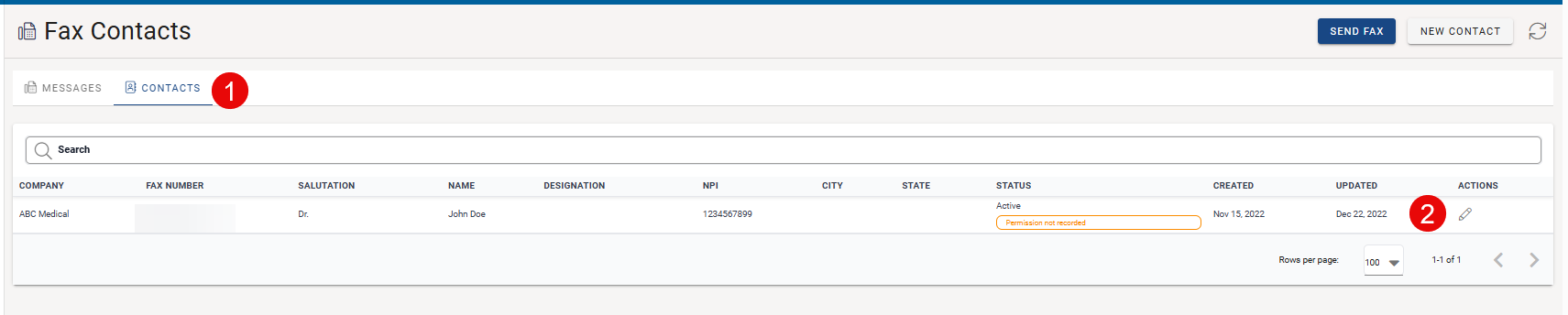
- On the Fax Contacts list, find the contact and click Edit.
- Update fields as needed.
- Click Update.
Important: If you change the fax number, the previous permission attestation no longer applies. You must affirm permission again for the new number.
Permission not recorded (existing contacts)
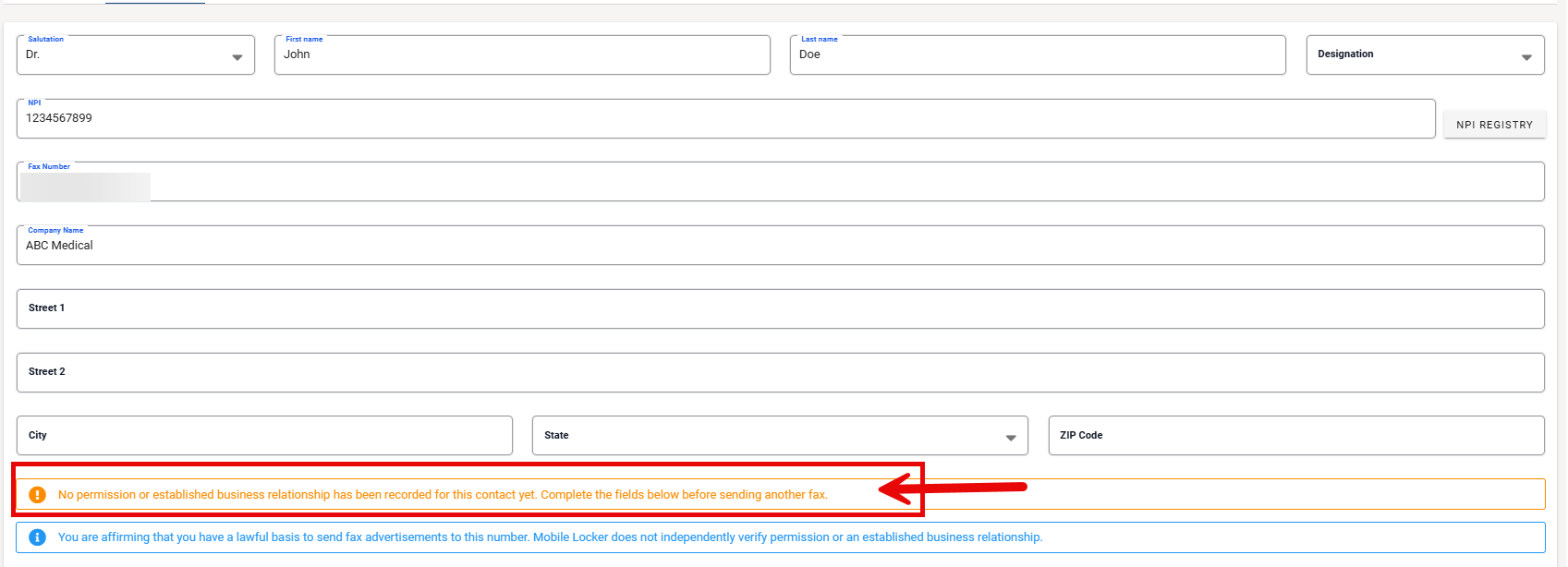
Contacts created before permission tracking may show Permission not recorded. Those contacts cannot receive new faxes until someone edits the contact and completes the permission basis fields.
Past fax history is not changed. Older messages may show that permission was not recorded at send time.
Unsubscribed contacts
If a recipient unsubscribed (via the cover page or an administrator), the contact is blocked from new sends. You cannot override an unsubscribe by updating permission fields. Contact your administrator to resubscribe if appropriate.
Search and refresh
Use the search box to filter by name, company, or fax number. Click the refresh icon to reload the list.
What Mobile Locker does not do
- Mobile Locker does not verify that you actually have permission or an EBR. You are affirming a lawful basis; your organization owns compliance and evidence.
- Completing permission in Mobile Locker is not a substitute for any opt-out notice required on the first page of your promotional PDF. Work with your compliance team on content requirements.